KB Article #1934
CollisionLink automatically captures aftermarket, remanufactured, salvaged, and other non-OE parts lines included in a shop's order--giving you the chance to take advantage of automaker programs and offer competitively-priced OE parts as an alternative. You can find these non-OE parts in the Upsell Parts section.
Use the steps below as a guide to maximize your OE-part upsell opportunities and increase your part sales!
Step 1: Review the Buyer's Request Column
The Buyer's Request column displays the shop's decision on purchasing OE parts as an alternative to the non-OEM parts displayed in the Upsell Parts section.
This column will display one of the following:
- Quote: The shop is expecting a quote for the OE part.
- OEM Accepted: The shop has accepted the Upfront Price for the OE part and would like to order it. Note: Upfront Pricing is not yet available to all subscribers. Watch for future communications from OEC as it becomes available in additional markets.
- Do Not Process: The shop does not need this part line fulfilled.
Step 2: Determine if Parts Qualify for an Automaker Program
Before you can consider offering OE parts, make sure you have valid part numbers. CollisionLink uses the part number to validate automaker parts program eligibility. If a part is eligible for automaker-sponsored program reimbursements, you can use the funds to offer the shop deeper discounts and aggressively upsell OE parts.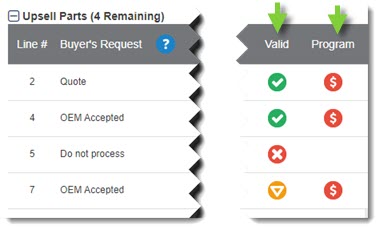
- Verify all the part numbers that display in the OE Part # column are correct. If any are blank or incorrect, type the valid OE Part # from the manufacturer's catalog and then press the TAB key to update.
- Review the Valid column:
- The red icon (
 ) indicates there is no match. A valid part number must be obtained before you can sell this line item.
 - The yellow icon (
 ) indicates a partial match on year and model only. A valid part number must be obtained before you can sell this line item.
 - If the OE Part # is validated against both the VIN and the manufacturer's catalog, a green icon (
 ) will display.
- The red icon (
- If CollisionLink recognizes the OE part number as a qualifying for an automaker program, a red (
 ) or green (
 ) icon will display in the Program column. (How to Tell if a CollisionLink Dealer Order Qualifies for a Parts Program.)
Step 3: Understand How to Compete Against the Non-OE Part Pricing
Before you can upsell an OE part, you need to understand both what you are competing against (the shop's price for the non-OE part) and the potential discount available through an automaker parts program (the reimbursement amount).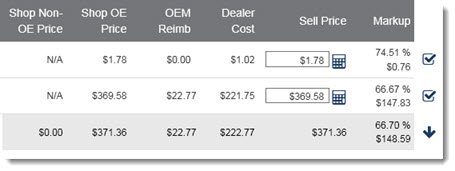
- Review the Shop Non-OE Price column. This is the price that you need to target or get as close to as possible to provide a competitive price. CollisionLink determines this price automatically based on the non-OE pricing formulas you have established or customized for the specific shop.
- The Shop OE Price shows the amount you would normally charge for the OE part. CollisionLink determines this price automatically based on the OE or shop-specific pricing formulas you have established.
- If the OE part is program-eligible, the OEM Reimb amount displays the automaker fund reimbursement you will receive for selling it. Note: Even without a reimbursement, you may still be able to offer a competitive price with your normal discounts.
- The Dealer Cost reflects the price that your dealership paid for the OE part. Typically, this represents your bottom-line--going below this will cost you money on the part. However, if the part qualifies for a reimbursement (OEM Reimb), you may be able to sell the part for less than Dealer Cost and still protect your profit margin.
- The Sell Price displayed is the automaker-recommended sales price that will guarantee you the maximum reimbursement. Depending on whether the program features a fixed or variable amount, changing the Sell Price may change the reimbursement amount.
- The Markup displays the potential profit (or loss) on a part if sold at the displayed Sell Price. Note: CollisionLink allows you to set up a Upsell Part Markup Goal that alerts you when a part's profit margin is less than a specified amount.
Step 4: Establish the Most Competitive Selling Price You Can Offer
Now that you understand what you are competing against and your potential to offer deeper discounts, the next question is: "Can I make money at the price recommended by the automaker?" (The Sell Price shown when the order is opened.)
If the recommended Sell Price is not competitive enough and you have room to reduce your profit margins, adjust your pricing formula to lower the Sell Price closer to the Shop Non-OE Price without falling below your profit goals. Click the calculator icon to display the Upsell Pricing Details and adjust as needed.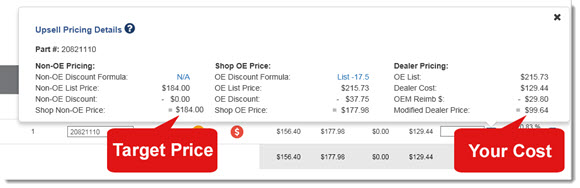
- The Non-OE Pricing section displays the shop's non-OE pricing information--including the Non-OE Discount Formula applied to the list price on the estimate. Clicking the link allows you to select a different formula. Keep in mind that adjusting the non-OE discount formula will change the Shop Non-OE Price--which may also impact the OEM Reimb amount and Sell Price.
- The Shop OE Pricing section displays the shop's price for the OE part. (This price includes the OE Discount Formula that is being applied to the OE List Price.) Clicking the link allows you to select a different formula and change the Sell Price.
- The Dealer Pricing section displays the list price for the part, your cost for the part, and the OEM reimbursement amount. Be sure to review the Modified Dealer Price--this will be the cost your dealership pays for this part. Going below this price could cost your dealership money!
- If you did not change a pricing formula, click the X to close the Upsell Pricing Details window.
Step 5: Select the OE Alternative Parts to Sell
Once you have completed the previous steps for each part line in the Upsell Parts section, you are ready to add parts to the shop's order.
- If you feel you cannot offer a competitive enough price on any one of the upsell parts, click the
 box to uncheck. This will prevent it from being added to the final order.
 - The Upsell Parts total bar will update to reflect the total reimbursement, selling price, and profit (markup) information for all checked parts.
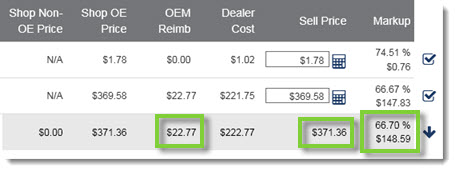
- If you are satisfied with the Markup percentage and amount for the selected parts, click the arrow (
 ) to add the OE parts to the Response to Buyer section. Once added, you can continue with the order or respond to the shop. (Click here to learn how to process an entire order.)