KB Article #6725
CollisionLink allows your shops to request quotes for parts before committing to ordering them. Paired with Upfront Pricing, this gives you multiple opportunities to offer competitive prices to your shops for selecting OE parts over the aftermarket options.
View a short video on this topic!
Step 1: Shop Requests a Quote
First, the shop reviews parts in the order and compares OE List price with Upfront Pricing and the possibility to receive a competitive price.
- When a shop reviews their unsent order, any non-OE parts will automatically display the OE list price for the OE alternative.

- If you provide upfront pricing to provide OE part alternatives to the shop's non-OE specified parts, it will display here. Upfront pricing will allow the shop to review those parts and determine if they want to immediately order the OE part.

- If you provide upfront pricing to provide OE part alternatives to the shop's non-OE specified parts, it will display here. Upfront pricing will allow the shop to review those parts and determine if they want to immediately order the OE part.
- For dealers that do not provide upfront pricing, OE parts will be sent as an order request, and non-OE parts will be sent as a quote request. If a shop would like to request a quote for an OE part on the order, they can select Quote from the Request drop-down.
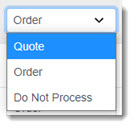
- Once all parts are marked, they will send the request to your dealership.
Step 2: Provide a Quote
Once the shop submits a quote request, you can review it and provide competitive pricing.
- Once the shop sends you the order, it will appear in CollisionLink as a New Quote Request. Double-click the quote to open it.

- Any parts the shop has requested a quote for will display Quote in the Buyer's Request column.

- To adjust the quoted price, type the updated amount in the Sell Price box for each part.

- Once all prices are adjusted, click the
 to drop each part into the Response to Buyer section. Alternatively, add all parts at once by clicking the
  .
. - Parts with a price quote will display a Status of Quoted, highlighted in blue.

- When ready, click Respond to Buyer to send the quote back to the shop. Note: Do not click Submit/Commit at this time. Doing so will prevent the buyer from reviewing and responding to your quote.

Step 3: Shop Accepts or Declines Quote
Once the shop receives your quote, they can choose to accept or decline the pricing and place the order.
- The shop will receive a notification once the quote has been sent.

- Inside the quote, parts they requested a quote for will show a Dealer Response of Quoted and a Part Status of Quote Requested.

- They can review each quoted part and choose from the following options:

- Order, if they want to order the part at the new quoted price.
- Decline, if they do not want to order the part.
- Once ready, the shop clicks Respond to Dealer to place the order.
Step 4: Fulfill the Order and Invoice the Parts
Once the order is placed, it can be fulfilled and processed by your dealership as normal.
- Once the shop sends you the order, it will appear in CollisionLink as Buyer Responded. Double-click the order to open it.

- Any parts the shop wishes to order will have a status of Quote Accepted in the Buyer's Request column, highlighted in blue.

- For each part:
- Make sure the Status drop-down shows Invoiced.
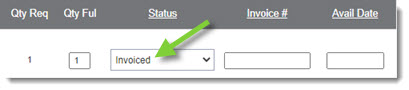
- Add an Invoice Number.

- Update the Available Date.

- Make sure the Status drop-down shows Invoiced.
- When ready, click Respond to Buyer.

- This updates the order's Status for the shop to Responded.
- To complete the order, click Submit/Commit.
