KB Article #267
The Overview window is the "home" for all quotes and orders that you receive through CollisionLink. The Overview window is divided into several sections that allow you to quickly locate and process transactions or modify the view to display specific transactions that need your attention.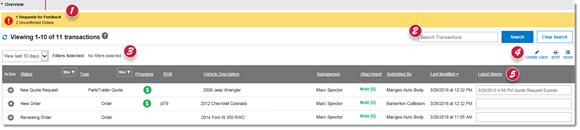
| 1 | Items that require your attention will display as alerts. Alerts will display for PartsTrader feedback requests and unconfirmed orders, OEM claim reimbursement validation issues and new notes or photos sent by a shop. |
| 2 | The Search box allows you to quickly locate orders on the Overview using an exact phrase, partial words, or numbers such as by vehicle, by the VIN, the RO number, or information in the Latest Memo field. |
| 3 | Customize which transactions show on your Overview based on date, type, or current status. (Click here for more information.) |
| 4 | Use the Overview menu to print transactions or create new claims for paper estimates. (Click here for more information.) |
| 5 | Key information about your transactions will display in this section of the Overview. (Click here for more information.) |
The following menu options are available on the CollisionLink Overview:
|
|
Claim Creation Manager allows you to calculate and submit OEM program reimbursements for eligible parts on the paper-based estimates you receive outside of CollisionLink. (Click here for more information.) |
|
|
Print details from a transaction for your records or to provide to a customer. (Click here for more information.) |
|
|
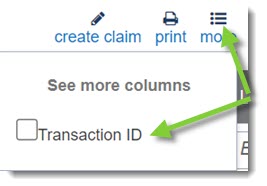
Further modify your Overview by adding the OEC Transaction ID to the transaction details. |
|
|
Click to see the latest transactions and transaction information on the Overview. |



The following details about each transaction display on the Overview:
|
Action |
Allows you to perform specific tasks on a transaction, including adding a note or a photo, or archiving the transaction. |
|
Trans ID |
The unique ID OEC assigns to each transaction. (Check the Transaction ID box in the Overview menu to display this column, which is hidden by default.) |
|
Status |
Shows the current status level of the transaction. This will automatically update, depending on actions taken on the Order Details window. (Click here for more information.) |
|
Type |
The Type column shows the kind of CollisionLink transaction based on the originating application. (Click here for more information.) |
|
Programs |
Some OEMs have chosen CollisionLink technology to manage specialized pricing programs. A program icon ( ) will display if one or more parts on the transaction could qualify for an OEM-discount program. ) will display if one or more parts on the transaction could qualify for an OEM-discount program. |
|
RO# |
The body shop's repair-order number. |
|
Vehicle Description |
The year, make, and model of the vehicle needing parts. |
|
Salesperson |
Shows the primary salesperson (if assigned) for this shop and will show the backup salesperson (after the primary salesperson) if there is one. If the primary salesperson is not in the office, the backup can complete and fulfill the order. |
|
Attachment |
Indicates notes or photos are included with the transaction. When a new note or photo is received from a shop, the indicator will display in green. |
|
Submitted By |
The body shop that submitted the transaction. |
|
Last Modified |
The last date and time the transaction was modified and changes were saved. |
|
Latest Memo |
Use the memo field to enter notes to yourself or co-workers who may work your transactions. If a new memo is added, the previous entry is permanently deleted. |