KB Article #451
CollisionLink allows users to quickly modify their view on the Overview window in three ways: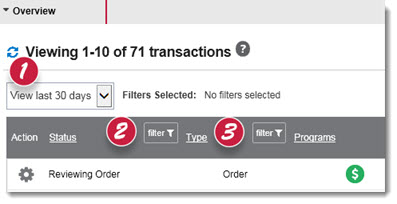
- Use this drop-down to determine what timeframe you wish to display on the Overview. All transactions that have been received, entered into CollisionLink manually, or modified in the previous 30 days. (View last 30 days ) will display by default. To modify the timeframe…
- The transaction Status filter option allows you to display specific transaction statuses on the Overview. By default, all transactions are shown on the Overview window. To filter transactions by Status…
- The transaction Type filter allows you to display specific transactions on the Overview based on their source. To filter transaction by Type...
These options will ensure you have access to specific transactions that need updated or help you stay on top of new quotes and orders arriving at your dealership! Note: You cannot change the default option for these views.
Are you missing transactions on the Overview window? Check the following:
- Is the transaction's Last Modified Date within the selected timeframe?
- Is the transaction's Status or Type different than what is selected to display on the Overview?
To modify the timeframe displayed on the Overview:
- Select your timeframe from the drop-down. The following options are available:
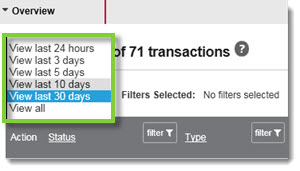
- View last 24 hours (This will display all transactions from the previous 24 hours. On Mondays, this will include transactions from Friday to Monday.)
- View last 3 days
- View last 5 days
- View last 10 days
- View last 30 days
- View all
- The Overview will refresh automatically and display the relevant transactions (based on Last Modified Date).
Note: All CollisionLink transactions older than 60 days are automatically archived and will not display on the Overview.
To filter transactions by Status:
- Click filter from the CollisionLink Overview's Status column.
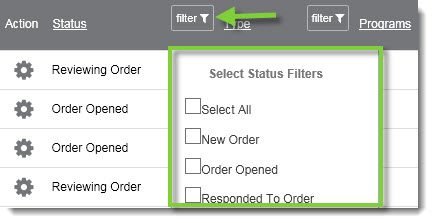
- Check the Status option(s) you wish to see on the Overview.
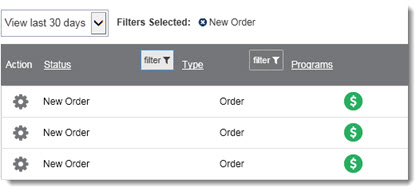
- The Overview will refresh, and only transactions with the chosen status/statuses will be visible.
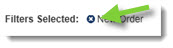
- To view all transactions again, click the X beside the selected filter(s) to remove.
To filter transactions by Type:
- Click filter from the CollisionLink Overview's Type column.
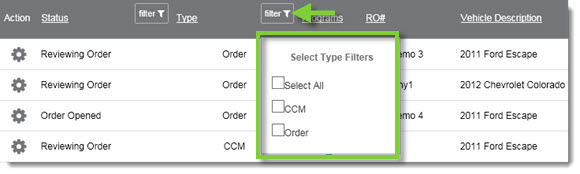
- Check the option(s) you wish to see on the Overview.
- The Overview will refresh, and only transactions with the chosen status/statuses will be visible.
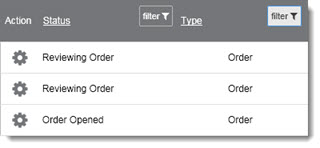
- To view all transactions again, click the X beside the selected filter(s) to remove.