KB Article #520
Once a transaction has been completed, it can be deleted or archived to keep your CollisionLink Overview window better organized. Transactions with a Status of Quote Declined can be deleted. Transactions with a Status of Completed, Submitted for Reimbursement, Order Declined, or Quote Request Closed can be archived.
Notes:
- Deleted orders are removed from all users. Archived orders are still available for review.
- PartsTrader quote are archived at 30 days.

- Transactions will be available for 12 months after archiving and are then permanently deleted.
- Transactions are archived based on user login. If one user archives a transaction, it will still display on the Overview for any other user that is able to view that transaction--such as the Admin or Power User.
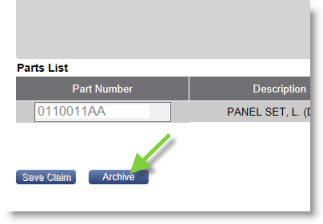
- Manual claims that have been Submitted for Reimbursement can be archived from the Claim Details window.
- To delete a transaction...
- To archive a transaction...
- To view archived transactions...
- From the Overview window, locate the transaction you wish to delete and click the Action icon (
 ). Note: The order must have a Status of Order Declined.
 - Click Delete.

- The transaction will be removed from the Overview. This action can not be undone. The order is no longer available in the solution.
- From the Overview window, locate the transaction you wish to delete and click the Action icon ().
- Click Move to Archives.
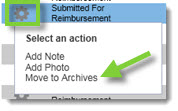
- The transaction will be removed from the Overview.
Once transactions are archived, they can still be viewed when needed. Note: Users can only view transactions that they have archived. Admins and Power Users can view all archived transactions.
To view archived transactions:
- From the Overview tab, click View Archive.
- The View Archived Transactions window displays. Select the Transaction Date Range from the criteria--this is a required field. (This is based on when the transaction was created, not archived.)
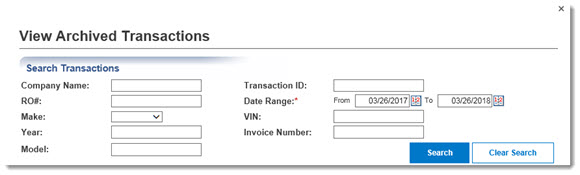
- Use one or more of the additional fields to narrow your search:
- Company Name
- RO#
- Make
- Year
- Model
- Transaction ID (The "CLK" prefix does not need to be included.)
- VIN
- Invoice Number
- Click Search. The results will display below.
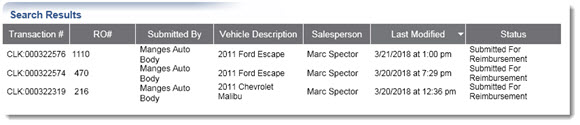
- Double click the correct transaction from the results list to view transaction details.
- When finished, click the X in the upper right-hand corner of the View Archived Transactions to close.