KB Article #6437
The New Customer Alert notification will send you an email or text message whenever a collision shop adds your dealership as their Preferred Supplier. Note: Shops will only display in Trading Partners if the shops sends you an order or you manually add the shop as a Trading Partner.
To set up the New Customer Alert:
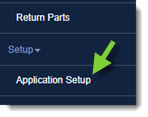
- From the CollisionLink window, click Application Setup.
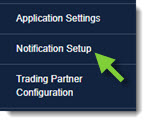
- Click Notification Setup.
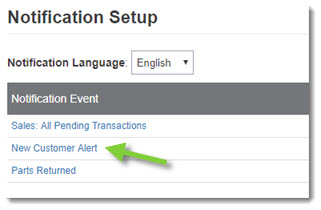
- Click on the New Customer Alert link.
- The selected event settings will display. Configure the following information:

- Place a check in the Active box to enable the notification event.
- Type the Notification Email (email address) that will receive notifications. (If entering multiple email addresses, use a semi-colon [;] with no spaces between each address.)
- Select the Notification Days and Notification Hours range for receiving notifications. Notification Hours default to Eastern Time.
- Click Save at the bottom of the window.
- When complete, click the Back button at the top of the left-hand navigation menu to close.
When your dealership is selected as the Preferred Supplier by a collision shop, you will receive an email similar to the following: 