KB Article #4447
If you are subscribed to DMS Connect, CollisionLink will connect to your DMS to retrieve OE part pricing data—based on the DMS Customer Number configured in OEC for the buyer--upon opening an order. If the DMS Customer Number passed is invalid or not set up in CollisionLink, the following alert will display at the top of the order details window and N/A will be displayed in the DMS Cust # field.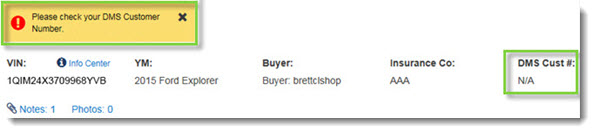
Note: The DMS Customer Number alert will display under the following conditions:
- The Default Customer Number in DMS Connect Settings is invalid/blank.
- The Trading Partner account is not set up or the DMS Customer Number is invalid/blank.
- The DMS Customer Number in the Trading Partner account is invalid and the Default DMS Customer Number is being used.
To check the Default Customer Number set up for DMS Connect:
- From the CollisionLink tab, click Application Setup.
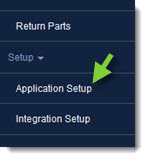
- From the Application Setup menu options, click DMS Connect.
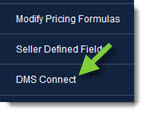
- Find the Default DMS Customer Number field.
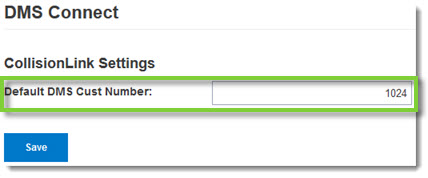
- If a number is provided, verify it against your DMS and correct as needed.
- If the field is blank, obtain the number from your DMS and type it in the field provided.
- Click Save to store any changes.
To check the DMS Customer Number set up for the shop's Trading Partner account:
- From the Application Setup menu options, click Trading Partner Configuration.
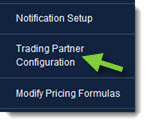
- Find and select the shop in the Trading Partner List and then click View Details. Note: If it is not listed, you will need to add the shop as a Trading Partner and include their DMS Customer Number. (Click here for more information on adding a new trading partner.)
- Find the DMS Customer Number field.
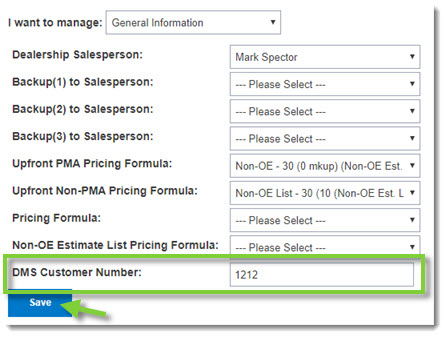
- If a number is provided, verify it against your DMS and correct as needed.
- If the field is blank, obtain the shop's customer number from your DMS and type it in the field provided.
- Click Save to store any changes.
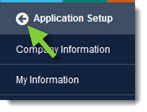
- When complete, click the Back button at the top of the left-hand navigation menu to close.