KB Article #6588
The Inventory Visibility options allow you to configure how you display inventory information to specific shops that you have set up as a Trading Partner in CollisionLink or for new shops that add you as a dealer.
Notes:
- If choosing not to publish inventory, be sure to select Do not display my inventory to shops.
- CollisionLink Shop users must submit orders in their entirety to one dealer. They cannot pick and choose who to request parts from within the same order based on the inventory you display.
The following options are available and will display different information to your shops:
- Show quantity on hand. When chosen, a shop will see:

- Show text labels ("In Stock" or "Contact Dealer"). When chosen, a shop will see one of the following:
- In Stock (If you have one or more of the part available.):

- Contact Dealer (If you do not have the part in stock.):

- In Stock (If you have one or more of the part available.):
- Show a hybrid of these options (quantity on hand or "Contact Dealer"). When chosen, a shop will see one of the following:
- QOH (If you have one or more of the part available.):
- Contact Dealer (If you do not have the part in stock.):
- QOH (If you have one or more of the part available.):
- Don't show inventory. When chosen, a shop will see:

To modify Inventory Visibility settings:
- From the CollisionLink tab, click Application Setup.

- Click Trading Partner Configuration.

- Find the shop's Company Name on the list and double-click to view the details.

-or-
Click CollisionLink default to apply to new shops as well as any shops that do not have a specific inventory visibility option selected.
- Click the I want to manage drop-down and select Inventory Visibility.

- Click the desired checkbox to select one of the following options:
- Always Show Actual QOH: This option will display the actual quantity of the part available in your inventory.

- If the part is unavailable, 0 will display.
- (If the Inventory Visibility feature is not configured for a trading partner, they will always see the actual part quantity available.)
- Always Show a Text Label: When this option is selected, it will display one of the following:
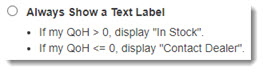
- In Stock: When you have one or more of the part available.
- Contact Dealer: If you do not have the part in stock.
- Show a hybrid of QOH and Labels: When this option is selected, it will display one of the following:
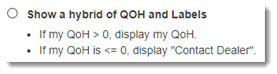
- QOH: If you have one or more of the part available, the actual quantity of the part available will show.
- Contact Dealer: If you do not have the part in stock.
- Do not display my inventory to my shops: This option will display N/A regardless of part availability.

- Note: Be sure to choose this option if choosing to hide your inventory.
- Always Show Actual QOH: This option will display the actual quantity of the part available in your inventory.
- Click Save when you are done making changes.