KB Article #6356
Note: EPCLink is only available to FCA, Ford, GM, Nissan/Infiniti, and Honda/Acura dealers at this time.
Part information can be found directly within a RepairLink order with EPCLink. No need to launch a separate application to review the part info--everything you need is now in one place to simplify your daily workflow. Click here for details on getting started with EPCLink!
There are two key pieces to EPCLink:
Want to learn more? Watch our video!
Accessing EPCLink
EPCLink can be accessed within an open RepairLink order. Click the EPC icon to the left of the appropriate part in the Buyer Request section. 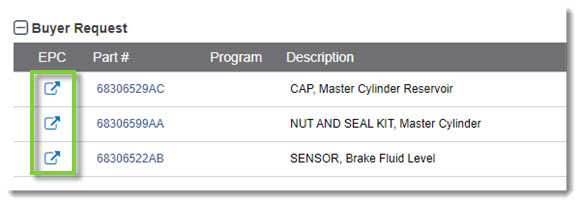
Reviewing Part Information in EPCLink
Part information will vary in display based on how the part or part number is found within EPCLink.
If the part is in the EPCLink catalog with that part number fitting the vehicle:
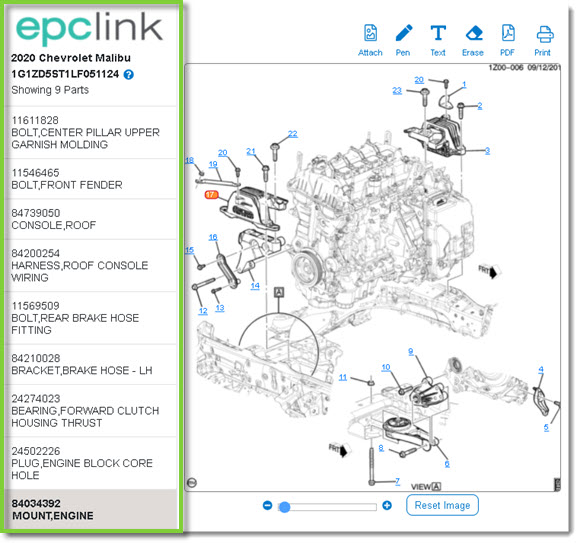
EPCLink will launch in a new window, showing the section illustration the part belongs to and highlighting the part callout. 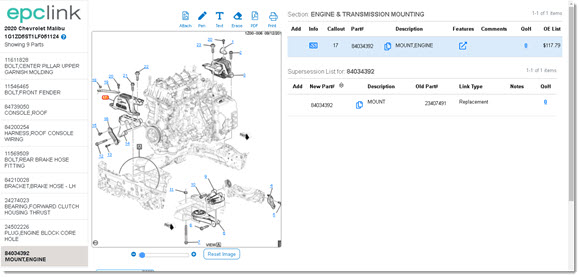
- The selected part will be listed on the right-hand side of the new window. (Click here for information on the details displayed.)
- The left-hand column will list all parts on the order.
- If the part has been superseded, the supersession list will appear below the table.
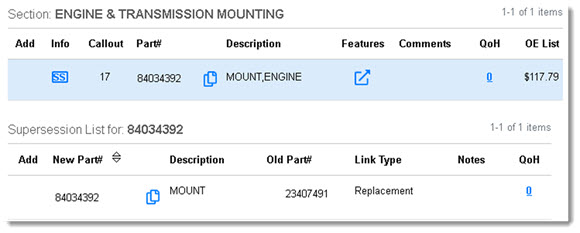
- The appropriate callout will be highlighted in the illustration. (Click here to learn about callouts.)
- You can alter the illustration using the options in the top right. (Click here to learn about editing illustrations.)
- If the part appears in other sections, click the section thumbnail below the illustration to navigate to the other sections.
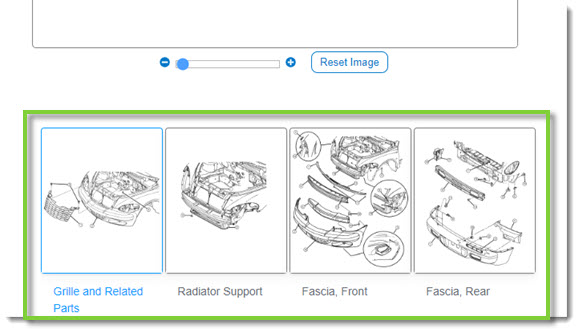
- Use the left side panel to view and switch between the parts currently in the order. Each item will show the part number, a brief description, and if the part appeared in the Upsell or OE Part section of the order.
- FCA Users Only: Use the search bar across the top or the breadcrumb navigation to search the OEC EPC within EPCLink. (Learn more about Navigating the OEC EPC in EPCLink.)

- To return to the RepairLink order, click the X in the upper right-hand corner of the window.
If the part is not found directly in the catalog, but was found using the part number and/or description related to the vehicle:
EPCLink will launch in a new window, showing a list of related parts and illustrations. The keyword/part number used in the search will display at the top. A blue banner will appear across the top, indicating there was no match for the part number.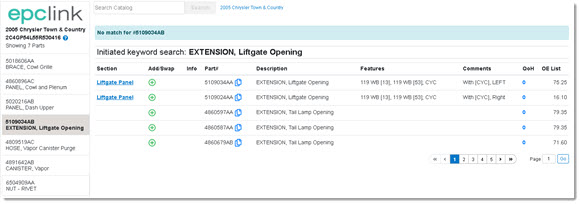
- To add the part from the search results directly to your order, click Add to Order.
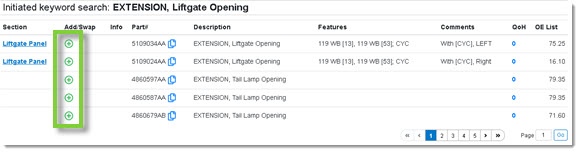
- Once added, a success message will appear.

- Once added, a success message will appear.
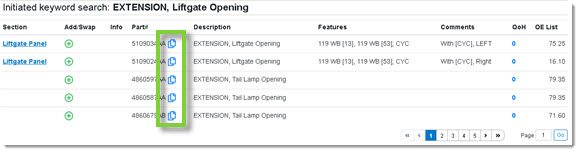
- To copy the part number to the computer clipboard, click Copy Part#. This allows you to paste the part number into another application. Note: There is no toast message for copying a part number.
- Comments and Features for the part will be provided.

- If applicable, an SS icon will appear if supersession information is available. Click the icon to view supersession details in a pop-up window.
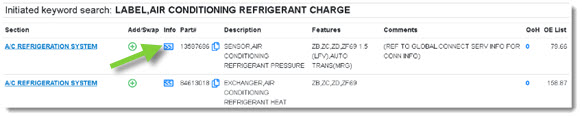
- FCA Users Only: If applicable, a camera icon (
 ) will appear if OEM-provided digital photos of the part have been added to the catalog. Click the icon to view the photos. (Click here to learn more about digital photos.)
 - The part's price, MPL or List price, will appear on the right.

- For more information on a part in the list, click the Section name to open it.
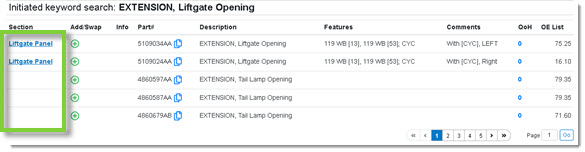
- Some OEMs may not see a Section name or options to add/swap the part. This occurs when the part is not featured on any illustration. This currently applies to GM dealers only.

- Some OEMs may not see a Section name or options to add/swap the part. This occurs when the part is not featured on any illustration. This currently applies to GM dealers only.
- Once inside the illustration, the selected part will be listed on the right-hand side of the new window. (Click here for information on the details displayed.)
- The left-hand column will list all parts on the order.
- If the part has been superseded, the supersession list will appear below the table.
- The appropriate callout will be highlighted in the illustration. (Click here to learn about callouts.)
- You can alter the illustration using the options in the top right. (Click here to learn about editing illustrations.)
- If the part appears in other sections, click the section thumbnail below the illustration to navigate to the other sections.
- Use the left side panel to view and switch between the parts currently in the order. Each item will show the part number, a brief description, and if the part appeared in the Upsell or OE Part section of the order.
- FCA Users Only: Use the search bar across the top or the breadcrumb navigation to search the OEC EPC within EPCLink. (Learn more about Navigating the OEC EPC in EPCLink.)

- To return to the RepairLink order, click the X in the upper right-hand corner of the window.