KB Article #275
When you are ready to finalize a CollisionLink program order, it can be submitted for reimbursement. Note: You will not be able to make changes to the order after you click Submit/Commit.
To submit an order for reimbursement:
- Click Submit/Commit.
- All parts should have a Status of Invoiced before submitting the order for reimbursement. (If any parts were left with a Status of Quoted, a warning message will display.) Click Go Back to return to the Order Details window or click Submit to fulfill the order without making changes.

- If there are program-eligible parts that you are submitting for reimbursement, a new window will display:
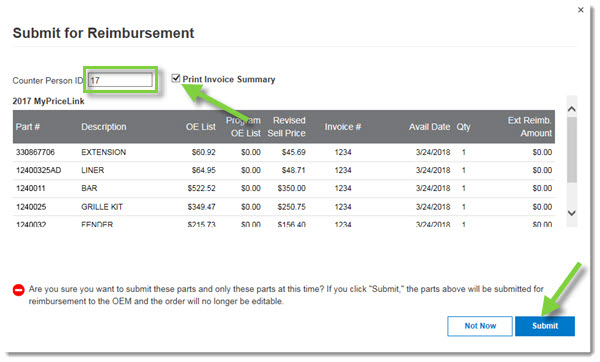
- Verify the Counter Person ID and check Print Invoice Summary if you have not already printed it.
- Part lines displayed under the Unverified Parts section are missing required information to submit. Click Not Now to return to the order and add the Parts Availability Date and/or the DMS Invoice Number for each unverified part. Note: If a part qualifies for Parts Matching (an icon will display in the Program column if a part qualifies for parts matching), you must enter the Invoice # and Avail Date before the order can be submitted for reimbursement. (Click here for more information on why an order cannot be submitted for reimbursement.)
- Click Submit to process the reimbursement order. Parts being submitted beyond the Program Submission Expiration date will be reimbursed with the next statement.