KB Article #3741
CollisionLink allows an administrator to change your OE and non-OE part pricing in just a few clicks using the Quick Calculator.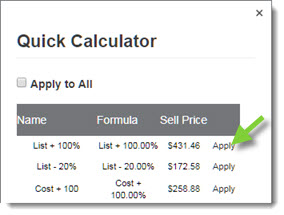
When the feature is enabled, users can change the following pricing details on-the-fly while processing an order:
- Shop Non-OE Price for an aftermarket part you are competing against by selecting a different Non-OE Pricing Formula.
- The Sell Price you intend on offering for an OE part by selecting a different OE Pricing Formula.
To be able to use the Quick Calculator:
- OE and Non-OE Pricing Formulas established in CollisionLink must be added to the Quick Calculator by the Administrator account holder. (Click here for information.)
- Each user that needs the Quick Calculator must have the feature enabled. (Click here for information.)
To add OE and Non-OE Pricing Formulas to the Quick Calculator (Administrators only)
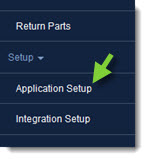
- From the CollisionLink tab, click Application Setup.
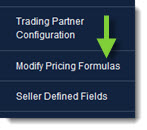
- Click Modify Pricing Formulas.
- To add OE Pricing Formulas to the Quick Calculator:
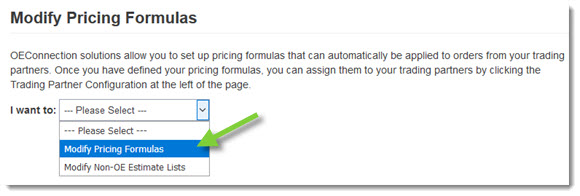
- Select Modify Pricing Formulas from the I want to drop-down.
- Check the Calc field next to any OE pricing formula you want included in the Quick Calculator.
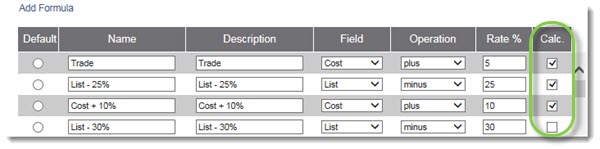
- Click Save to store the change.
- Select Modify Pricing Formulas from the I want to drop-down.
- To add Non-OE Pricing Formulas to the Quick Calculator:
- Select Modify Non-OE Estimate Lists from the I want to drop-down.
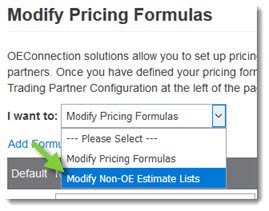
- Check the Calc field next to any non-OE pricing formula you want included in the Quick Calculator.
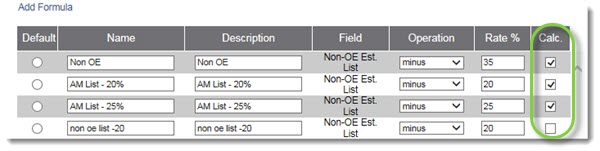
- Click Save.
- Select Modify Non-OE Estimate Lists from the I want to drop-down.
- When complete, click the Back button at the top of the left-hand navigation menu to close.
To enable the Quick Calculator feature (All Users):
Quick Calculator is a per-user feature that must be enabled by each CollisionLink account.
- From the CollisionLink tab, click Application Setup.
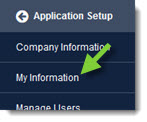
- Click the My Information from the options on the left-hand side of the setup window.
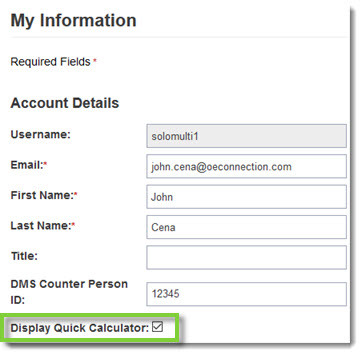
- Check the Display Quick Calculator box.
- Click Save to enable the feature. (Click here to learn how to use the Quick Calculator to change pricing details while processing CollisionLink orders.)
- When complete, click the Back button at the top of the left-hand navigation menu to close.