KB Article #2331
The Notification section allows the administrator and users to receive an email automatically when an order is received. CollisionLink sends notification email for the following events:
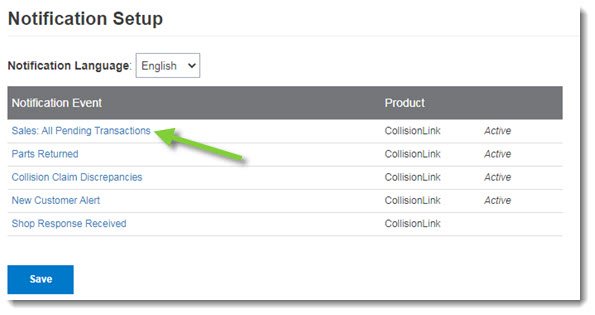
- Sales: All Pending Transactions: For any new order received.
- Parts Returned: For any parts returned through CollisionLink.
- Collision Claim Discrepancies (Claim Validation subscribers only): For claim discrepancies found by participating OEMs in submissions for reimbursements.
- New Customer Alert: For any new shop that adds your dealership in CollisionLink Shop as a preferred supplier.
- Shop Response Received: In preparation for the future quote-to-order workflow, dealers can set this up but this functionality is not live.
Once these notifications are configured, they can be changed at any time. (Click here for more information on setting up notifications.)
Notes:
- If you are an administrator and add email addresses to the Notification Emails box, those email addresses will receive notifications for all transactions, even if they are not the salesperson for that trading partner. This may cause a user to receive an email notification but not be able to view transactions when they login.
- If you are not an administrator and add email addresses to the Notification Emails box, those email addresses will receive notifications only for transactions from the trading partners for which you are the salesperson.
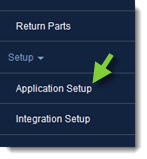
- From the CollisionLink tab, click Application Setup.
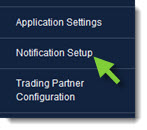
- Click Notification Setup.
- Click the notification event you wish to change.
- Make the necessary changes.
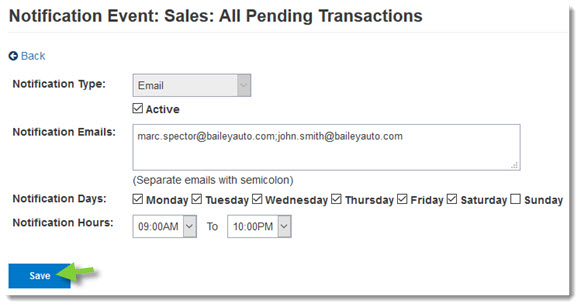
- If you no longer want notifications to be sent out, uncheck the Active box.
- If adding additional email addresses in the Notification Emails box, use a semi-colon [;] with no spaces between each address.
- If you want to add or remove Notification Days, check or uncheck the boxes as needed.
- If you want to change the times notifications are sent, use the drop-downs provided to change Notification Hours as needed.
- Click Save to save the notification updates.
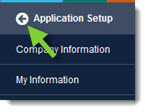
- When complete, click the Back button at the top of the left-hand navigation menu to close.
Addresses for text notification:
To send text notifications to your cell phone, use the following addresses:
- Alltel: 10-digit mobile number@message.alltel.com
- AT&T: 10-digit mobile number@mms.att.net
- Boost Mobile: 10-digit mobile number@myboostmobile.com
- Cricket: 10-digit mobile number@sms.cricketwireless.net
- Metro PCS: 10-digit mobile number@mymetropcs.com
- Sprint: 10-digit mobile number@messaging.sprintpcs.com
- Straight Talk: 10-digit mobile number@vtext.com
- T-Mobile: 10-digit mobile number@tmomail.net
- U.S. Cellular: 10-digit mobile number@email.uscc.net
- Verizon Wireless: 10-digit mobile number@vtext.com
- Virgin Mobile: 10-digit mobile number@vmobl.com
Canadian carries include the following:
- Rogers Wireless: 10-digit mobile phone number@pcs.rogers.com
- Fido: 10-digit mobile phone number@fido.ca
- Telus: 10-digit mobile phone number@@msg.telus.com
- Bell Mobility: 10-digit mobile phone number@txt.bell.ca
- Kudo Mobile: 10-digit mobile phone number@msg.koodomobile.com
- MTS: 10-digit mobile phone number@text.mtsmobility.com
- President's Choice: 10-digit mobile phone number@txt.bell.ca
- Sasktel: 10-digit mobile phone number@sms.sasktel.com
- Solo: 10-digit mobile phone number@txt.bell.ca
- Virgin: 10-digit mobile phone number@vmobile.ca
Visit your cell-phone provider website for carriers not listed above.