KB Article #1268
Once a trading partner has been created, it can be easily modified to change pricing formulas, add additional sales persons or include the shop's customer number from your DMS. Note: Only administrators can access the Trading Partner Configuration section of Application Setup.
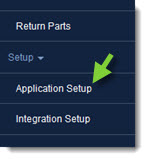
- From the CollisionLink tab, click Application Setup.
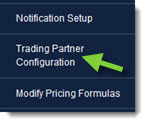
- Click Trading Partner Configuration.
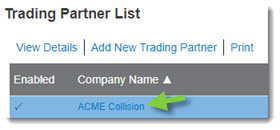
- Find the shop you want to modify on the Trading Partner list and double-click the record to view its details.
- The General Information management section allows you to:
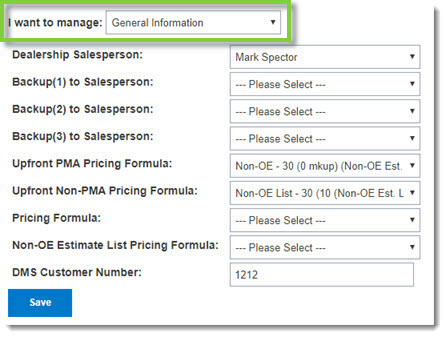
- Change the selected Dealership Salesperson.
- Select a Backup to Salesperson (Up to three can be selected).
- Choose or change the Upfront Pricing Formulas (both the Upfront PMA Pricing Formula and the Upfront Non-PMA Pricing Formula), if available, that automatically calculate the upfront price for OE alternatives to parts shops initially specify as non-OE in their estimates. Note: Upfront Pricing is not yet available to all subscribers. Watch for future communications from OEC as it becomes available in all markets.
- Choose or change the Pricing Formula that automatically calculates the Sell Price for OE parts you receive from the shop.
- Choose or change the Non-OE Estimate List Pricing Formula that automatically calculates the price the shop pays for the aftermarket parts displayed in the Upsell Opportunities section of the order.
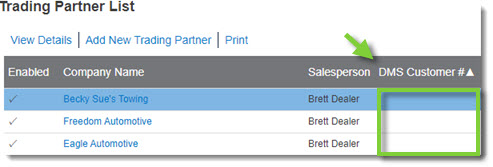
- Add the shop's customer number from your DMS. Note: To locate Trading Partners without a DMS number, click the DMS Customer # column heading. This will sort the Trading Partner list by the customer number, putting the unassigned DMS numbers at the top.
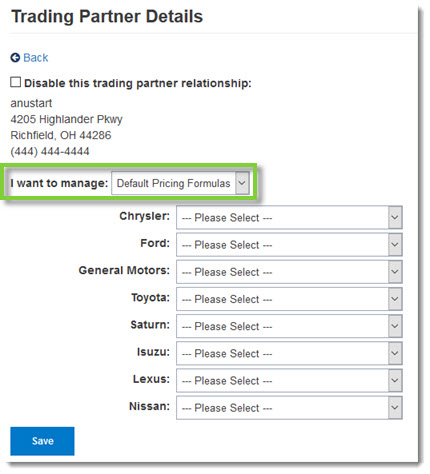
- The Default Pricing Formulas section allows you to choose or change the formulas that will be applied to the OE parts for the specified OEMs you are franchised with. Note: You do not have to choose a formula for every OEM. The Pricing Formula in the General Information section will be used for any OEM that does not have an assigned pricing formula.
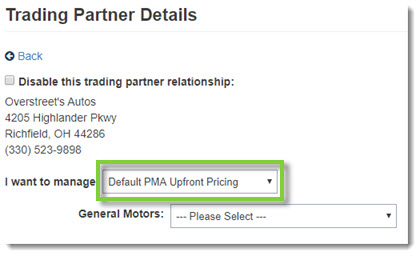
- The Default PMA Upfront Pricing section, if available, allows you to choose or change the formulas that will be applied to the OE equivalent parts that qualify for a manufacturer sponsored reimbursement program for the non-OE specified parts on your trading partner's estimates for each OEM you choose.
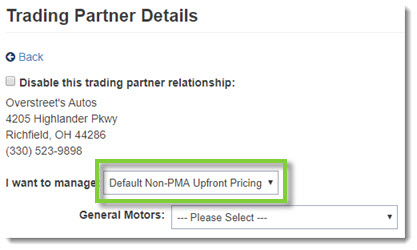
- The Default Non-PMA Upfront Pricing section, if available, allows you to choose or change the formulas that will be applied to the OE equivalent parts that do not qualify for a manufacturer-sponsored reimbursement program for the non-OE specified parts on your trading partner's estimates for each OEM you choose.
- After making the needed modifications to the trading partner information, click Save.
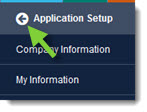
- When complete, click the Back button at the top of the left-hand navigation menu to close.
Body shops that you no longer do business with can be disabled as Trading Partners. Note: This does not prevent a shop from sending orders to your dealership. Your default pricing formulas, including Upfront Pricing, will still be visible to the shop.
- From the CollisionLink tab, click Application Setup.
- Click Trading Partner Configuration.
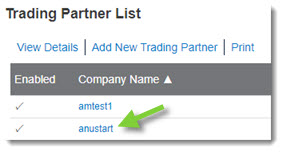
- Find the shop you want to disable on the Trading Partner list and double-click the record to view its details.
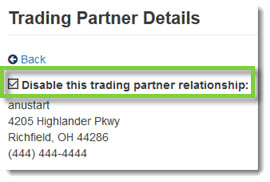
- Check the Disable this trading partner relationship box.
- Click Save.
- When complete, click the Back button at the top of the left-hand navigation menu to close.