KB Article #1371
Whenever a new note or photo is received within RepairLink, the following alert will display: 
To view new notes or photos, simply click the Attachment column header to sort and display the most recent notes and photos at the top. A green dot  will indicate when a new note or photo has arrived.
If the shop has sent a note along with the order, click the link to view.
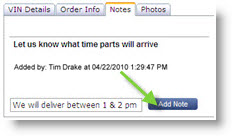
Shop notes can contain valuable information such as a request for a quote on a non-OEM part or a specific delivery date request. Reply back immediately to let the shop know you saw their request by typing your note and clicking Add Note. Click the X to return to the Overview.