KB Article #1269
The Inventory Visibility options allow you to configure how you display inventory information to a repair shop that you have set up as a Trading Partner in RepairLink.
The following options are available:
- Show quantity on hand.
- Show text labels ("In Stock" or "Available").
- Show a hybrid of these options.
To modify Inventory Visibility settings:
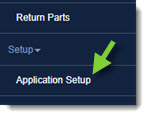
- From the RepairLink tab, click Application Setup.
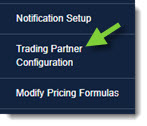
- Click Trading Partner Configuration.
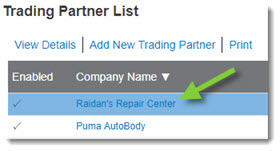
- Find the repair shop's Company Name on the list and double-click to view the details.
- To configure how you want to display inventory information to the repair shop:

- Click the I want to manage drop-down and select Inventory Visibility.
- Click the desired checkbox to select one of the following options:
- Always Show Actual QOH: This option will display the actual quantity of the part available in your inventory. If the part is unavailable, “0” will display. (If the Inventory Visibility feature is not configured for a trading partner, they will always see the actual part quantity available.)
- Always Show a Text Label: When this option is selected, the part quantity will display as “In Stock” when you have one or more of the part available and as “Available” if you are out of the part.
- Show a hybrid of QOH and Labels: Allows your customers to see the actual quantity of the part when available and displays “Available” if you do not currently have the part in stock.
- Click Save when you are done making changes.