KB Article #1157
RepairLink allows you to create custom formulas that will automatically price your parts based on a rate you specify against the trade price. The following manufacturers provide List, Cost, and Trade Price in their parts master data:
- GM (U.S./Canada)
- Audi (Canada)
- Volkswagen (Canada)
- Ford (Canada)
The following manufacturers provide List and Cost in their parts master data:
- Chrysler (U.S./Canada)
- INFINITI (Canada)
- Nissan (Canada)
- Toyota (U.S./Canada)
The following guidelines apply when creating trade pricing formulas:
- Trade pricing formulas only apply to RepairLink orders.
- Trade pricing formulas will not display in CollisionLink's Quick Calculator Tool since they exclusively apply to to RepairLink.
- If trade pricing is not provided in the manufacturer's parts master data for a specific part:
- The Net Buyer Cost in the order will be calculated based on the shop's default Pricing Formula (as configured within Trading Partner Configuration).
- If the formula is not set up in the shop's Trading Partner account, the discount will be calculated based on the Default Pricing Formula set up in Modify Pricing Formulas.
- If a Default Pricing Formula has not been set up, the list price of the part will be used.
To create a trade pricing formula:
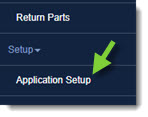
- From the RepairLink tab, click Application Setup.
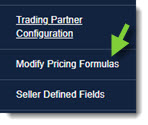
- Click Modify Pricing Formulas from the left-hand side.
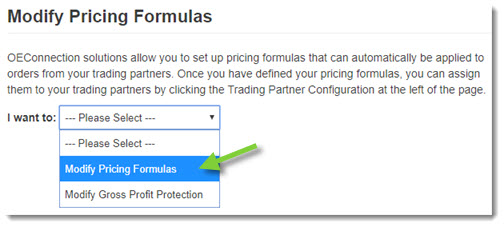
- Select Modify Pricing Formulas from the I want to drop-down.
- Click Add Formula to create new pricing formulas that can be applied to a trading partner or manufacturer.

- Type Trade Price in the Name and Description boxes.

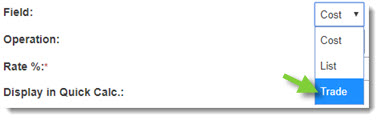
- Select Trade from the Field drop-down.
- Select the Operation (plus or minus).
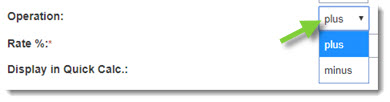
- Type the percentage Rate to be applied. (Pricing formulas can have up to two decimal places.)

- Click Add.
- Click Save to save the new pricing formula.
The new trade pricing formula can now be set us as shop's default pricing formula for the manufacturers specific above using the Trading Partner Configuration. (Click here for more information.)