KB Article #272
CollisionLink give you two option for printing details of a transaction:
Using Advanced Print
CollisionLink's Advanced Print feature allows you to select specific part types and order information for printing. (Use the Quick Print feature to quickly print the details of the shop order, including the parts list, upsell part opportunities, and shop notes.) Note: When a CollisionLink order is printed, the Status changes to Order Opened as an indication to the shop that the order is being looked at.
You can print details of an order from two places in CollisionLink:
To print a CollisionLink order from the Overview window:
- From the CollisionLink tab, click to highlight the order that you wish to print.
- Click the print icon on the CollisionLink Overview menu.

- Click the Advanced Print button.
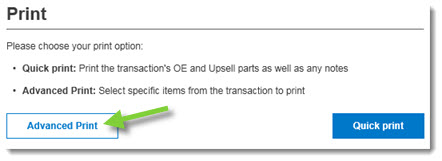
- From the Advanced Print window, select the details and options you wish to print or click Select All.
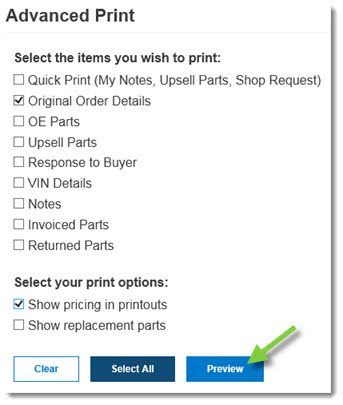
- Click Preview.
- Click the Print icon.

To print a CollisionLink order from the Order Details:
- From the Order Details tab, click Print, and then select the item you wish to print from the drop-down menu.
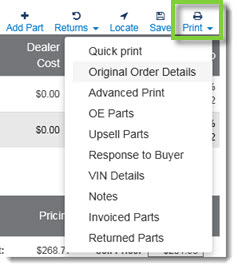
- A preview of the report will display. Click the Print icon in the upper right-hand corner.

Using Quick Print
CollisionLink's Quick Print feature allows you to quickly print the details of the shop order, including the parts list, upsell part opportunities, and shop notes. (Use the Advanced Print feature to select specific part types and order information for printing.) Note: When a CollisionLink order is printed, the Status changes to Order Opened as an indication to the shop that the order is being looked at.
You can access the Quick Print option from two places in CollisionLink:
To print an order using the Quick Print option on the Overview:
- From the CollisionLink tab, click to highlight the order that you wish to print.
- Click the print icon on the CollisionLink Overview menu.

- Click the Quick print button.
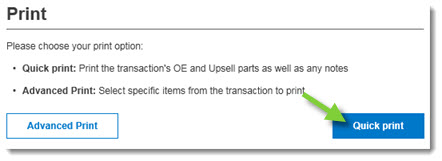
- From the Print dialog box, ensure the correct printer is selected.
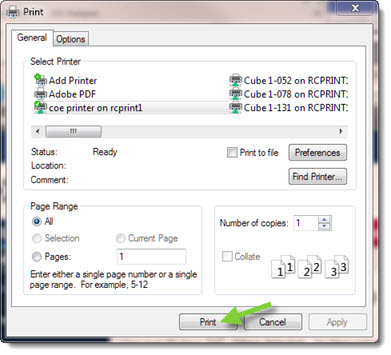
- Click Print.
To print an order using the Quick Print option from the Order Details:
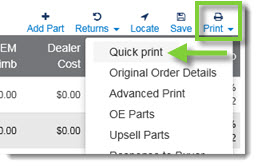
- From the Order Details tab, click Print, and then select Quick print from the drop-down menu.
- From the Print dialog box, ensure the correct printer is selected.

- Click Print.