KB Article #1781
RepairLink uses pricing formulas to automatically display competitive prices to shops that want to order from you. You can create multiple list-, cost-, or trade-based formulas that can be used to display:
- Special pricing for specific shops that you do business with (by selecting pricing formulas in a shop's Trading Partner account)
- General pricing for shops that you offer a common discount to (by selecting pricing formulas in RepairLink's Default Trading Partner account)
Although you can set up pricing formulas at the Trading Partner level, you also need to select one formula as the Default Pricing Formula that will act as a "safety net"--assuring first-time shoppers see a competitive price based on the selected formula. If you do not select a Default Pricing Formula, shops will see the list price when they shop for parts from your dealership.
How formulas are applied in RepairLink
- The graphic below illustrates how formulas are applied, depending on the way a shop Trading Partner and the Default Trading Partner account are set up in RepairLink:

- The selected Default Pricing Formula applies to both CollisionLink and RepairLink.
- Changing the selection in RepairLink Application Setup will modify the selected formula in CollisionLink Application Setup.
- Important: Dealers subscribed to both CollisionLink and RepairLink should configure pricing formulas in RepairLink's Default Trading Partner account to assure the correct discounts are applied to mechanical part orders.
A Default Pricing Formula is required to use RepairLink.
To set your default pricing formula:
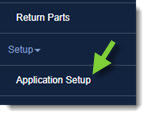
- From the RepairLink tab, click Application Setup.
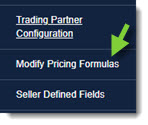
- Click Modify Pricing Formulas.
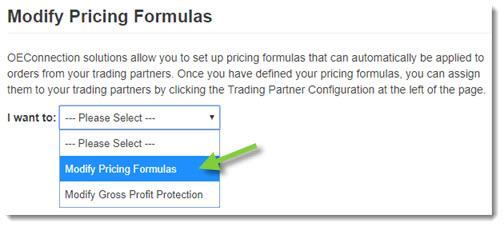
- Select Modify Pricing Formulas from the I want to drop-down.
- To select the default pricing formula, click the Default option in front of the pricing formula.

- Click Save.