KB Article #1860
Custom dealership-defined fields can be added to each shop account, allowing you to include other important information. Data such as truck route number or shop owner name can be stored for each body-shop account and be accessed at any time by any user. Administrators can:
Once a seller-defined field has been created, the field will display on the Trading Partner Details window. (Click here for more information on adding a RepairLink Trading Partner.)
To add a seller-defined field:
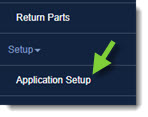
- From the RepairLink tab, click Application Setup.
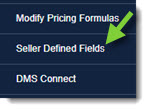
- Click Seller Defined Fields.
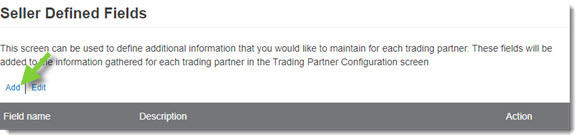
- Click Add.
- Type the Field Name and Description.
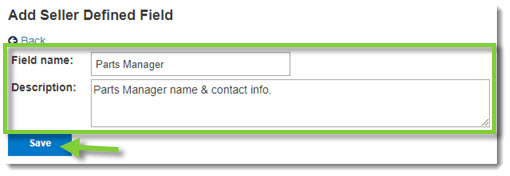
- Click Save to add the field to the list. The new field will now be available in the Trading Partner Configuration.
To edit an existing seller-defined field:
- From the RepairLink tab, click Application Setup.
- Click Seller Defined Fields.
- Click the Field name of the field you wish to change.
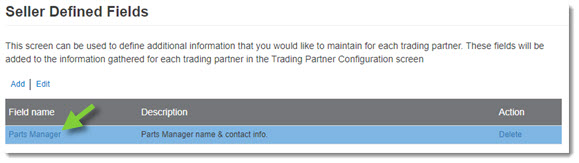
- The field details will display. Make your changes and then click Save.
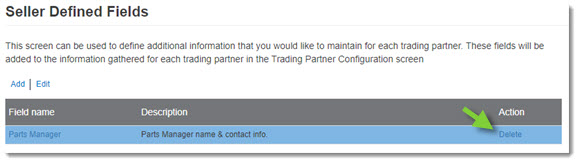
To delete an existing seller-defined field:
- From the RepairLink tab, click Application Setup.
- Click Seller Defined Fields.
- The list of created fields will display. Click Delete for the field you wish to remove. The field will immediately be removed from your list.