KB Article #6380
Establishing default trading partner settings ensures that all shops see pricing information right away--even before they are added as a Trading Partner.
To add Default Trading Partner settings:
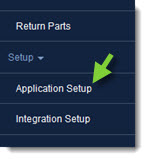
- From the CollisionLink tab, click Application Setup.
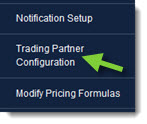
- From Application Setup, click Trading Partner Configuration.
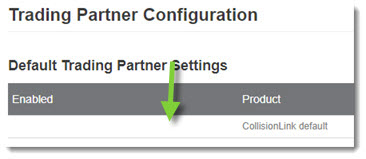
- Under Default Trading Partner settings, double-click CollisionLink default.
- The Trading Partner Details window displays. Configure the following options under the General Information section:
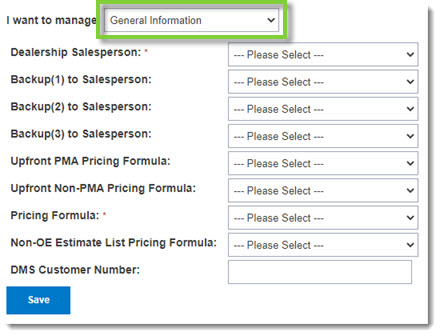
- Use the Dealership Salesperson drop-down to assign a primary salesperson. Once a salesperson is assigned, they can see parts orders from new collision shops. (This is a required field.)
- If desired, use the Backup Salesperson drop-downs to select up to three backup salespeople. Use this to ensure orders are processed quickly, even if the primary salesperson is not available.
- Use the Upfront PMA Pricing Formula and Upfront Non-PMA Pricing Formula drop-downs to set default upfront pricing formulas. (Click here for tips on setting up default Upfront Pricing formulas.)
- Select the overall Pricing Formula from the drop-down. (This is a required field.)
- If desired, add the DMS Customer Number.
- (Optional) CollisionLink allows you to apply different pricing formulas to the specific OEMs you are franchised with. If you skip this step, the pricing formulas selected in the General Information section will be applied to all OEM parts.
- Select Default Pricing Formulas from the I want to manage drop-down to add formulas that will be applied to the OE parts for the specified OEMs you are franchised with. Note: You can only select pricing formulas that have already been added to CollisionLink. (Click here to learn how to add pricing formulas.)

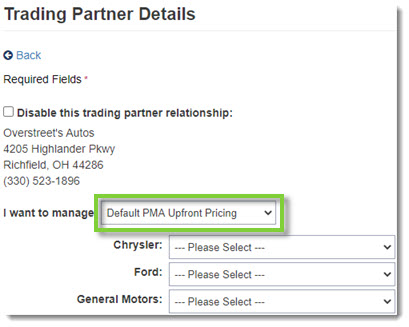
- Select Default PMA Upfront Pricing from the I want to manage drop-down to add OEM-specific formulas that will be applied to non-OE specified parts that qualify for a manufacturer sponsored reimbursement program. Note: You can only select pricing formulas that have already been added to CollisionLink. (Click here to learn how to add upfront pricing formulas.)
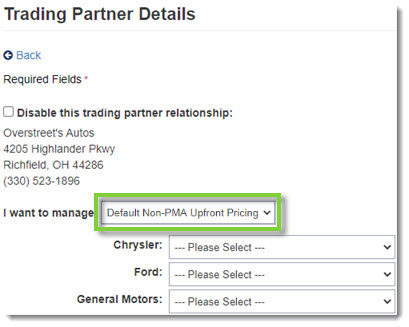
- Select Default Non-PMA Upfront Pricing from the I want to manage drop-down to add OEM-specific formulas that will be applied to non-OE specified parts that do not qualify for a program. Note: You can only select pricing formulas that have already been added to CollisionLink. (Click here to learn how to add upfront pricing formulas.)
- Select Default Pricing Formulas from the I want to manage drop-down to add formulas that will be applied to the OE parts for the specified OEMs you are franchised with. Note: You can only select pricing formulas that have already been added to CollisionLink. (Click here to learn how to add pricing formulas.)
- Click Save when you are done making changes.