KB Article #296
The Funds Tracking Report is generated and available on demand to participating CollisionLink dealers. This report will keep you informed of the reimbursement amount spent so far in the current settlement budget period and the amount remaining to be spent (as well as providing information on the previous and next funding periods). Use this information when offering a discount for converting a part to ensure you receive reimbursement funds from the OEM. (Only the administrator can access the Funds Tracking Report.)
If funds tracking functionality is not enabled by the OEM or for the current program, the Funds Tracking Report will not be available. (Reports cannot be configured.)
To access the Program Fund Limits Report:
- From the CollisionLink tab, click Funds Tracking from the left-hand navigation menu. The Funds Tracking window will open.
- The file available for download will display. (A message will display when no file is available for download.)
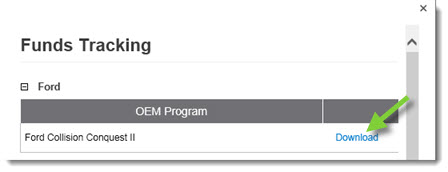
- Click Download beside the report. You can click Open to view the report immediately or click Save to save the report to your computer for later viewing. Click the X in the upper right-hand corner of the Funds Tracking window to close.
Funds Tracking Report Field Definitions
| Dealer Name | The name of the dealer who had participating transactions within the specified time period and input parameters. |
| Dealer Code | The OEM-assigned dealer code. |
| OEM Name | The name of the OEM participating in the program. |
| Report Start Date | The date the report starts. Included parts will be for orders submitted on or after this date and returns on or after this date. |
| Report Finish Date | The date the report ends. Included parts will be for orders submitted on or before this date and returns on or before this date. |
| Report Compilation Date/Time | Date and time stamp for when the report was generated. |
| Funds Available Next Month | The amount of funds that the OEM assigned to this dealer code for the next program month. |
| Funds Available Last Month | The amount of funds that the OEM assigned to this dealer code for the previous program month. |
| Starting Funds This Month | The total funds that were available at the start of the fund limit start date. |
| Submitted Reimbursements | The amount of discounts submitted by the dealer in the given time period. |
| Returned Reimbursements | The amount of discounts that were associated with parts returned in the given time period. (This only reflects the return date, not the date submitted.) |
| Total Net $ Value in Program Reimbursements | The discounts from submittals minus the discounts from returns. |
| Available Funds | The total funds that remain to be spent for the fund period. |
| Funds Overage | If a fund limit has been overspent, this box will show how much more funds have been submitted for reimbursement than were available on or between the fund limit start date and the fund limit end date. |
| Submitted Parts List | |
| Line # | The line number, for reference purposes. |
| Employee ID | The Employee ID entered before the dealer submitted the transaction for reimbursement. |
| Program Name | The name applied to the specific program that this part was discounted under. |
| Order Number | The unique CollisionLink number used to track each transaction. |
| Invoice Number | The dealer invoice number. |
| Returned/ Purchased | Was the part a purchase (P) or a return (R). |
| Order Origination Date | The date the dealer received the order from the shop. |
| Order Submittal Date | The date the order with this part was submitted by seller (returned or purchased part). (This may be earlier than the report start date if it is a returned part. The return date will be within the report start and end date.) |
| Return Date | The date the part was returned. |
| OE Part Number | The manufacturer’s part number. |
| Units Sold or Returned | The number of OE parts sold or returned. |
| PMA Discount Extended | The discount extended to the quantity of parts on the order. |
| Funds Available | The total funds that remain to be spent for the fund period. (This will display in red if you have exceeded your current funds limit.) |