KB Article #3043
If you need to get part pricing on-demand for retail orders, walk-in or your service lane, use the MyPriceLink Price Look-up Tool. (If you have a quote number, use the MyPriceLink Quote Search to view.) Note: The Price Lookup can be used to retrieve pricing for all parts, not just those that are part of MyPriceLink.
The MyPriceLink Price Lookup tool will not allow users to add non-OE parts or to see reimbursement information for converting a non-OE part to its OE equivalent. To receive a reimbursement on these parts, dealers must:
- Receive, process, and submit the order for reimbursement through CollisionLink.
- Obtain the MyPriceLink quote or estimate number from your shop and use the MyPriceLink Quote Search to view, process, and submit the order for reimbursement. (Not all estimating systems will send aftermarket parts through MyPriceLink.)
- Submit the order for reimbursement when available.
Reminder: Since MyPriceLink provides real-time pricing based on market dynamics (as opposed to a static price tape), part pricing may vary from repair to repair.
See it in action! Watch our video:
To look up pricing using MyPriceLink:
- From the MyPriceLink tab, click Price Lookup.
- Fill in the Vehicle and Payer information: (While not required, adding this information will provide you with the most accurate price.)

- Insurance Company
- Vehicle Owner State Note: This will default to the State that displays in the Portal Company Information.
- Vehicle Mileage
- VIN
-or-
If the VIN is not known, invalid, or if MyPriceLink cannot decode it, check the VIN Unknown box and then select the OEM, Vehicle Make, Vehicle Year, and Vehicle Model from the drop-downs.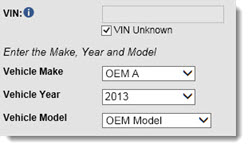
- Type (or copy and paste) the Part Number(s) in the provided box. If pricing multiple parts, separate them with a comma or line return. A maximum of 100 parts can be entered at one time. Note: MyPriceLink will not return correct results if there are spaces between numbers (For example: 123 456 789).

- Click Get Price.
- The Pricing Information box will display the Part Number, Description, real-time List Price, and Dealer Cost, along with Trade and Wholesale pricing (depending on OEM) for each part entered. A quote number will also display, which can be provided to your customer. (If needed, you can print this information.)

- Trade Price is only available for GM dealerships. All other OEMs will display $0.00 in this column.
- Wholesale Pricing is only available to Mercedes-Benz dealers. All other OEMs will see $0.00 in the Wholesale Price column.
- Click Process Order if the customer wishes to purchase all or some of these parts now--or you wish to export the parts list to your DMS. Note: The quote will open in a new tab.
-or-
When the customer is ready to order these parts at your dealership, they can provide you the quote number and you will able to pull up the quote (using the MyPriceLink Quote Search) and process the order. Note: Historical quotes are available up to 120 days after the quote was generated. - Review the parts that display in the OE Parts section. Verify the part number and Sell Price--updating if needed. Note: MyPriceLink does not contain stocking information from your DMS.

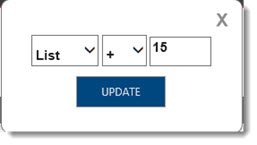
- To change the pricing formula for a part, click the calculator icon (
 ) next to the Sell Price field.
 - Change the formula as needed and then click Update. The Sell Price will be updated to reflect the new formula.
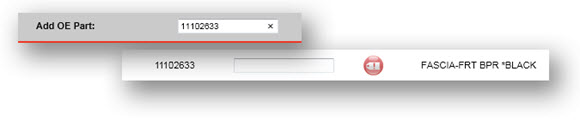
- If you need to add an OE part to the MyPriceLink transaction, type the additional part in the field provided. When you press TAB or ENTER on your keyboard, the part information and MyPriceLink pricing (including any reimbursement) will display.
- Click the plus (
 ) sign to move a part to the Order Status section.
-or-
Click the down arrow ( ) to move all parts to the Order Status section.
 - To assign the same invoice number to all parts, click DMS Invoice # at the top of the column, type the invoice number into the box, and then click OK.
-or-
To assign the invoice number to a single part, click the invoice number box for that line item and type the number for that part.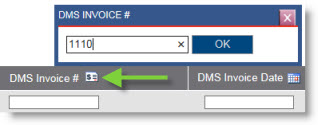
- Click the DMS Invoice Date column header and select the date from the calendar. All part lines will be assigned the selected delivery date. Note: You cannot select a date prior to the current date.
-or-
To assign different dates, click inside a part's DMS Invoice Date field and select the date from the calendar.
- Click Finalize Order.
- The Quote Details window displays with all parts on the quote being finalized. To ensure you are credited with the sale, type your Counter Person ID in the provided field.
- Click Submit to complete and submit any qualifying parts for reimbursement. Once you click Submit, the MyPriceLink order/pricing is "locked" and cannot be edited or changed.