KB Article #3426
Parts that have been superceded can be quickly updated within MyPriceLink.
Example:
- The body shop writes an estimate that includes a hood with part number 1A and MyPriceLink Quote Number 123 is generated.
- The estimate is faxed over to the dealership.
- Using their EPC, the dealer determines the hood's new part number is 2A.
- The dealer will need to update the MyPriceLink part number to 2A in the Quote Details window before finalizing the order.
(Click here for instructions on how to handle superceded parts that were discovered after the parts list has been added to your DMS.)
To process orders with superceded parts:
- From the MyPriceLink Quote Details window, type any new part numbers in the Revised Part # field and then press the TAB key. The list price will automatically update to reflect the new part.
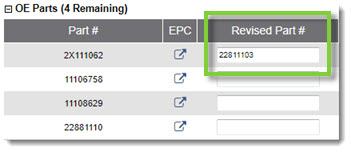
- If needed, adjust the Sell Price to the desired amount.
- Click the plus (
 ) sign to move a single part to the Order Status section.
-or-
Click the down arrow ( ) to move all parts to the Order Status section.
 - If your DMS integrates with MyPriceLink, click the Export to DMS button to send the quote to your DMS for processing. Once you have saved the invoice in your DMS, the DMS Invoice # and DMS Invoice Date will update with your DMS information. (Click here to learn more about DMS Integration with MyPriceLink.)
-or-
Type the DMS Invoice # and DMS Invoice Date on the MyPriceLink window.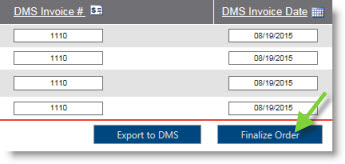
- Click Finalize Order.
- The Quote Details window will display all parts on the completed order. Click Submit to complete and submit any qualifying parts for reimbursement.
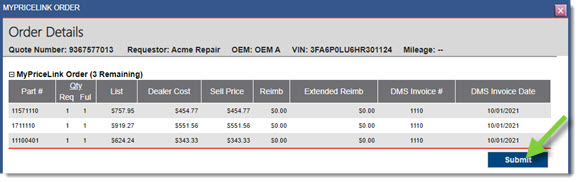
To update parts added to the DMS:
- Return to the MyPriceLink Quote Details window.
- Locate the superceded part line(s) within the Order Status section.
- Click the minus (
 ) sign to move the part(s) back to the Upsell Parts or OE Parts section.
- Type any new part numbers in the Revised Part # field and then press the TAB key. The List price will automatically update to reflect the new part.
- If needed, adjust the Sell Price to the desired amount.
- Click the plus () sign to move a single part to the Order Status section.
-or-
Click the down arrow () to move all parts to the Order Status section. - Within your DMS, update the existing invoice with the new OE List and Sell Price.
-or-
If your DMS integrates with MyPriceLink, click the Export to DMS button to send a new quote with the updated part numbers and pricing. (Click here to learn more about DMS Integration with MyPriceLink.) - If integrated, once you have saved the invoice in your DMS, the DMS Invoice # and DMS Invoice Date will update with your DMS information.
-or-
Type the DMS Invoice # and DMS Invoice Date on the MyPriceLink window.
- Click Finalize Order.
- The Quote Details window will display all parts on the completed order. Click Submit to complete and submit any qualifying parts for reimbursement.