KB Article #3342
Dealers that subscribe to OEC’s CollisionLink and have a participating DMS can export part-pricing information—speeding up the time it takes to create an invoice vs rekeying. Additionally, your DMS will send your invoice number and date back to MyPriceLink so you have less information to key in to submit for reimbursement. Note: Dealers can export information to their DMS multiple times, if needed, until the order is finalized.
Dealers who do not have CollisionLink are still able to take advantage of the free MyPriceLink Price Lookup and Quote Search tools.
To take advantage of this functionality you must:
- Have a Dealer Management System that integrates with CollisionLink/MyPriceLink. Visit the Learning Center (located in the lower right-hand corner of the MyPriceLink tab) for more information on using MyPriceLink with your DMS.
- Have the integration functionality activated within your DMS. Export functionality will work within MyPriceLink, but information will not be available if the DMS functionality is not active. Contact your DMS provider if you are not sure if this functionality is active.
- Have a CollisionLink subscription.
See it in action! Watch our video:
To export your MyPriceLink pricing details:
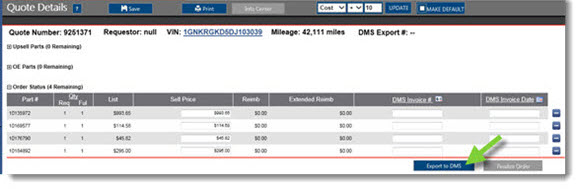
- Verify that all parts that you can fulfill have been moved to the Order Status section of the MyPriceLink Quote Details window. Note: The Export to DMS button will be grayed out until parts are moved to the Order Status section.
- Leave the DMS Invoice # and DMS Invoice Date fields blank/empty. These will be filled in once the information is sent back from your DMS.
- Click Export to DMS. Note: This functionality is not available once an order has been finalized.
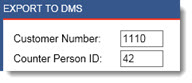
- The Create DMS Document window will display. If desired, type the Customer Number and Counter Person ID from your DMS.
- Use the Include Sell Price feature to determine if OEC sends the Sell Price displayed in MyPriceLink to your DMS.
- If the Include Sell Price box(es) are checked, the DMS will not calculate the sell price for the part(s). To send the Sell Price for all parts, check the Include All Sell Prices box. Note: The Include Sell Price will always be checked for any part that qualifies for a reimbursement.
- If the Include Sell Price box(es) are not checked, a $0 Sell Price will be sent from OEC to your DMS.
- Uncheck the Include Part box for any part(s) that you do not want to send to your DMS.
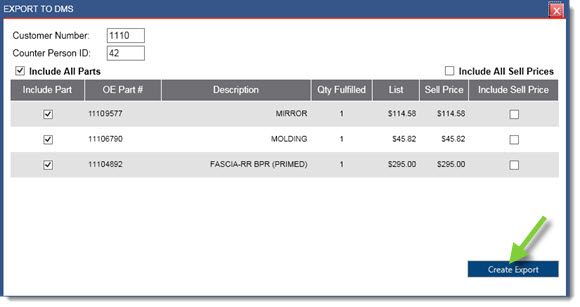
- Click Create Export.
- Once the process is completed, the DMS Export # will display. This number will be used to retrieve the quote within your DMS. Note: You can copy this number from MyPriceLink and paste into your DMS to retrieve the MyPriceLink quote.

- Click the X in the upper right-hand corner of the Create DMS Document window to close. Note: The DMS Export # will also display on the Quote Details window for reference.
- From the DMS, locate the DMS Export and complete the order as normal. Upon finalization, invoice information is sent back to OEC and the order is updated.
Notes:- To access quotes from your DMS, you will need to log in using your OEC credentials. (This window will vary by DMS.)
- Parts added to an order within the DMS will not transfer over to MyPriceLink.
- Each time the Export to DMS button is clicked, a new DMS Export # will be created.
- Once you have invoiced the order within the DMS, refresh (F5) MyPriceLink (if the order is still open) and the Order Status section will update with the following details:
- Part validation (DMS Confirmed)
- The green checkmark (
 ) indicates the Sell Price is the same in both MyPriceLink and your DMS.
 - The red x (
 ) indicates the Sell Price does not match in the two systems.
 - If the DMS Confirmed field is blank, the part number has been changed within the DMS and MyPriceLink is unable to verify the new information is correct.
- The green checkmark (
- Invoice number (DMS Invoice #)
- Invoice date (DMS Invoice Date): This can be updated within MyPriceLink if needed.
- Note: If a part has been superceded, you will need to manually update the part number in MyPriceLink. (Click here for more information.)
- Part validation (DMS Confirmed)
- Click Finalize Order.

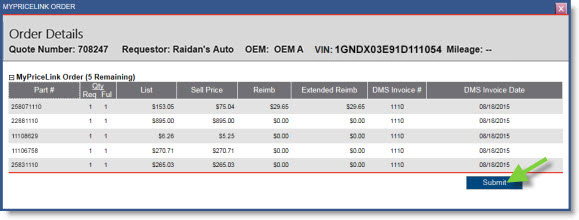
- The Quote Details window will display all parts on the completed order. Click Submit to complete and submit any qualifying parts for reimbursement.