KB Article #6565
OEC solutions give you several ways to sell more parts through conquesting. To ensure the most streamlined workflow between you and your shops, always direct your shops to send transactions with CollisionLink. This ensures you receive new quotes and orders, with automatic MyPriceLink list pricing, as soon as they are placed--speeding up the time it takes to complete the order. Learn more about processing orders in CollisionLink.
However, in those rare instances when a shop cannot use the CollisionLink workflow, MyPriceLink allows you to view these quotes and identify opportunities to sell more parts.
See More. Ask More. Sell More! Watch our video to learn how:
To search for a quote to maximize your conquest part sales:
- From the MyPriceLink tab, click Search. The Quote Search tab will display by default.

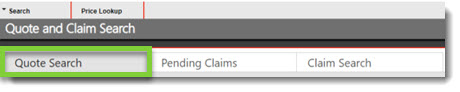
- Click VIN. Note: MyPriceLink allows you to search by either the full VIN or the last eight characters of the VIN.

- Type the VIN in the provided field.

- Click Search.
- Look for the most recent MyPriceLink quotes with the Source CES or CL Shop Estimate.
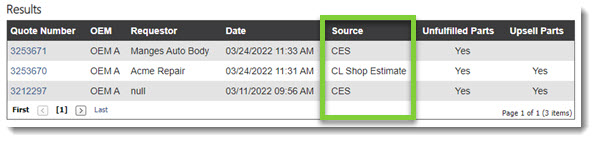
- CES (Collision Estimating System) creates MyPriceLink quotes when the shop saves or commits to the estimate. Depending on the insurance carrier, dealers will be able to see the OE and non-OE parts and prices from the estimate.
- CL Shop Estimate is an unsent CollisionLink Shop order. This will show you all the parts and prices from the estimate. Encourage your shop to hit Send in CollisionLink Shop to process through CollisionLink.
- Click the Quote Number to view its details.

- The Quote Details window will open. (If this is not the correct quote, click the X to close and select a different quote from the results.) From here, you can view the VIN, OEM, requestor, and parts attached to the quote as well as set your Sell Price. Once the parts and pricing are finalized (as described in Step 17), use this window to submit the quote for reimbursement.
- Conquest opportunities will appear in the Upsell Parts section. Verify the OE Part # and Sell Price and update if needed to reflect the competitive part pricing needed to conquest the part. Additionally, the OE substitute for a non-OE specified part may be eligible for reimbursement.

Note: MyPriceLink quotes generated within a Collision Estimating System will display non-OE parts specified on an estimate in the following cases:
-
- If the Source is CES and the OEM has an agreement with the insurance carrier.
- If the Source is CL Shop Estimate and the shop has exported the estimate to CollisionLink Shop's Estimate Uploader. For these estimates, dealers should reach out to their shops and encourage them to send their orders through CollisionLink.
-
- To change the pricing formula for a part, click the calculator icon (
 ) next to the Sell Price field. Change the formula as needed and then click Update. The Sell Price will be updated to reflect the new formula.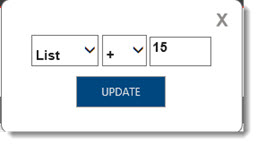
- Verify that the
 box is checked next to the part(s) you plan to sell.
 - Click the down arrow (
 ) to move the part(s) to the Order Status section.
 - Next, review the parts that display in the OE Parts section. Verify the part number and Sell Price--updating if needed. Note: MyPriceLink does not contain stocking information from your DMS.

- To change the pricing formula for a part, click the calculator icon () next to the Sell Price field. Change the formula as needed and then click Update. The Sell Price will be updated to reflect the new formula.
- Click the plus (
 ) sign to move a part to the Order Status section.
-or-
Click the down arrow () to move all parts to the Order Status section. - To assign the same invoice number to all parts, click DMS Invoice # at the top of the column, type the invoice number into the box, and then click OK.
-or-
To assign the invoice number to a single part, click the invoice number box for that line item and type the number for that part.
- Click the DMS Invoice Date column header and select the date from the calendar. All part lines will be assigned the selected delivery date. Note: You cannot select a date prior to the current date.
-or-
To assign different dates, click inside a part's DMS Invoice Date field and select the date from the calendar.
- Click Finalize Order.
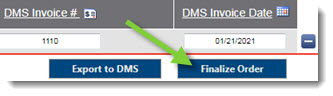
- The Quote Details window will display all parts on the quote being finalized. Click Submit to complete and submit any qualifying parts for reimbursement. Once you click Submit, the MyPriceLink order/pricing is "locked" and cannot be edited or changed.
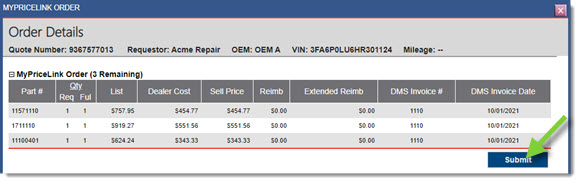
Notes:- Quotes without reimbursements can also be finalized and submitted as this will lock the quote.
- A CollisionLink subscription may be required to finalize and submit.