KB Article #3045
MyPriceLink delivers real-time collision parts prices to the market at the time an estimate is written. Current CollisionLink Shop users will continue to send orders the same way it's done today. The difference is when an estimate is imported into CollisionLink, the imported suggested list price from your estimate will be checked with MyPriceLink to make sure you have the latest price.
If you need to use another parts procurement solution to send your collision orders, you can still use CollisionLink Shop. You can view your estimates with MyPriceLink prices without having to send orders from CollisionLink Shop. Alternately, you can use the MyPriceLink Lookup Tool within CollisionLink Shop to enter part numbers and view the real-time MyPriceLink prices.
Reminder: Since MyPriceLink provides real-time pricing based on market dynamics (as opposed to a static price tape), part pricing may vary from repair to repair.
To process your CollisionLink order:
- Export your estimate(s) from your estimating system. Exported estimates appear on the Unsent Orders tab.
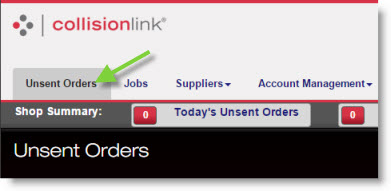
- If you have the manual import option turned on, click Import Estimate to bring in your estimate. Otherwise, click Refresh to immediately display new orders.
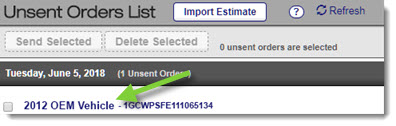
- Find your order on the Unsent Orders list. Confirm the correct Supplier is selected. (If not, click the drop-down to select the right one.)

- Click the vehicle link to view order details.
- Upon importing the estimate, CollisionLink may adjust the Payer name to ensure an accurate OE List price is calculated.

- To provide a more accurate price, update the Mileage field if blank.

- For qualifying orders, the MyPriceLink Quote # will display. This number will automatically be sent over to the dealer through CollisionLink when you click Send.

- The Est. Price field will display the List Price imported from the estimating system.

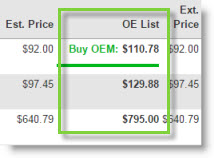
- For collision parts, the MyPriceLink suggested list price will display in the OE List field. Non-collision parts will display the information from the Price Tape.
- If the OE List price is different from the price from your estimating system, it will display in bold. Click Send Price Updates to export the updated information to your estimating system.

- For non-OE specified part lines, if the OE substitute part number is available, the OE List price will display. This allows you to immediately compare the real-time OE List price to the non-OE List price. If you wish to purchase the OE part and receive credit for any OEM promotional program, the part must be updated to OEM in your estimating system and re-imported into CollisionLink.
- Click Send to submit the order to your dealer.

- Once your dealer responds to the order or quote request, use the Jobs tab to view the response. If the OE List price is different from the price from your estimating system, it will be highlighted. Click Send Price Updates to export the updated information to your estimating system.

Note: Once a MyPriceLink quote is sent (shop clicks Send) from CollisionLink Shop to CollisionLink Dealer, the estimate is now a CollisionLink transaction. The MyPriceLink Quote ID that was generated (either within the estimating system or CollisionLink Shop) cannot be searched for or fulfilled within MyPriceLink.