KB Article #3910
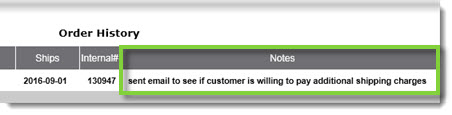
Use the Notes feature to store internal information about a ConsumerLink Pro order which will display on the ConsumerLink Order History window. Notes can only be seen by your dealership.
Note: To return to the legacy view of orders, click Go to Recent Orders - Legacy. (Click here for legacy instructions.)
To add a note from the Recent Orders window:
- From the Recent Orders window, click the Show More button.

- Type your note in the provided box.

- Click + Add Note.

Note: Click the More Notes button to navigate to the complete note history in the legacy window.
To add a note from the legacy window:
- In the Recent Orders window, click More Notes.
- Click Notes.

- Type your note in the Add Note field.

- Click Add Note To Order.
- The new note will display in the Notes field on the Order History window.