KB Article #1534
Use promotions to provide incentives to customer to place orders with your parts departments. You can quickly create pricing or shipping discounts within ConsumerLink. Note: ConsumerLink Setup options can only be accessed by the ConsumerLink Administrator.
Please keep the following in mind when creating promotions:
- Multiple promotions/codes can be active at the same time.
- Only one promotion can display on your storefront.
- Customers can only apply one promotion to an order.
- Discount promotions are applied to the entire order, not individual items.
- All promotions are legally binding.
- Once a promotion has started (is Active), only the End Date, Visible check box, and Active check box can be changed.
- Once the promotion End Date has passed, the promotion will automatically change to Inactive.
- ConsumerLink promotions can be deleted (click the promotion to select and then click Delete ) at any time if they have not started yet.
- Expired promotions cannot be deleted.
- Customers must enter the Coupon Code to qualify for the discount.
- Promotions are based on parts subtotal. For example:
- 10% off orders of $50 or more would give the discount only once the parts subtotal reaches $50.
- Free shipping for orders $40 or more would only allow free shipping once the parts subtotal reaches $40.
To create a new promotion:
- From the ConsumerLink tab, click ConsumerLink Setup.
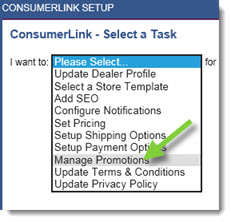
- Click the I want to: drop-down and select Manage Promotions.
- Select your OEM from the OEM drop-down.
- Click OK to display the list of current promotions.

- Click Create New to start a new promotion.
- Type the Promotion Name. This will appear as the title of the promotion on your storefront.
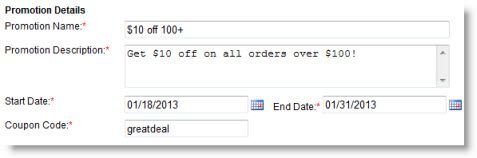
- Type the Program Description. This will appear as the Description on your storefront.
- Select a Start Date from the calendar pop-up.

- Select an End Date from the calendar pop-up.
- Type the Coupon Code you want buyers to use to qualify for the promotion. Customers must enter the Coupon Code to qualify for the discount. Note: Coupon Codes can have a maximum of ten digits.
- From the Promotion Type drop-down select the type of promotion:
- Monetary Promotion: Take a specific dollar amount off an order.

- Type the minimum order amount which will qualify for the discount in the Min Order $ field.
- Type the amount that will be applied as a discount to the order total in the Discount $ field.
- Discount Promotion: Take a specific percentage discount off the total order.

- Type the minimum order amount which will qualify for the discount in the Min Order $ field.
- Type a maximum order amount for which the discount will be applicable in the Max Discount $ field.
- Type the percentage of the total amount that will be applied as a discount in the Discount % field.
- Free Shipping: Allows you to offer free shipping to customers whose order total is higher than a specific dollar amount.
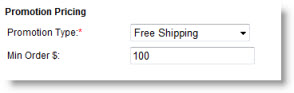
- Type the minimum order amount for which free shipping can be applied in the Min Order $ field.
- Monetary Promotion: Take a specific dollar amount off an order.
- Type your terms and conditions for the promotion in the Promotion Terms & Conditions field. (Optional)

- To make the promotion visible on your website, click the Visible online box to check. If you check the this option, the promotion will display similar to this:

- To make the promotion active, select the Active checkbox.

- Click Save.