KB Article #1531
Pricing Formulas allow you to:
- Create a single pricing formula for OEM parts to be used for all open-site customers.
- Create a single pricing formula for value line parts to be used for all open-site customers.
- Setup gross profit protection for each of the OEM part and the value line part formulas.
- Select part availability options for your storefront.
Note: ConsumerLink Setup options can only be accessed by the ConsumerLink Administrator.
To set up pricing:
- From the ConsumerLink tab, click ConsumerLink Setup.
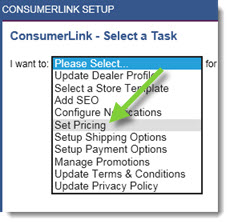
- Click the I want to: drop-down and select Set Pricing.
- Select your OEM from the OEM drop-down.
- Click OK to display the pricing configuration fields
- Under Pricing Formula, set up an OEM Formula and/or your value line formula (this option will vary by OEM). There is one pricing formula for each OEM/value brand. (There is no individual customer pricing in ConsumerLink.)
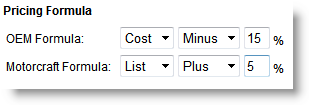
- Select Cost or List from the first drop-down.
- Select if the formula is Plus or Minus the first variable selected.
- Type the % rate that will be applied in the provided field.
- If you want to ensure that your parts are always sold at a minimum profit, type a % value next to the OEM Rate and/or your value line rate (this option will vary by OEM) fields to ensure profit protection. Please note that if your profit protection formula leads to a price that is higher than the OE List price, the OE List price will be applied to the part.

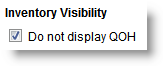
- From Inventory Visibility, you can select the text that will display regarding your inventory. You can also choose not to display the parts quantity on hand by selecting the Do not display QOH checkbox. (This will remove this column from your storefront.)
- When the QOH is greater than 0: Select to display the text 'In Stock’ or your actual QOH.

- When QOH is 0: The text 'Call Dealer' will automatically be displayed.
- When the QOH is greater than 0: Select to display the text 'In Stock’ or your actual QOH.
- If you do not want your buyers to see the MSRP value for a part:
- Check the Do not display MSRP box.
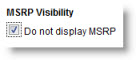
- When checked, the MSRP column will not display on your ConsumerLink storefront.
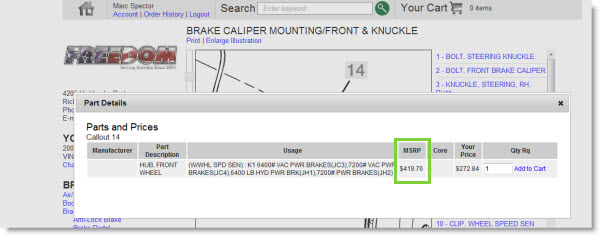
- Check the Do not display MSRP box.
- If you are a ConsumerLink Basic subscriber, type your Tax Percentage in the field provided. This will be used to calculate the sales tax applied to every order.

- Click Save.