KB Article #2242
Once your eBay account has been set up, you are ready to configure your storefront.
To configure your eBay store:
- Log into your eBay account.
- Click My eBay.
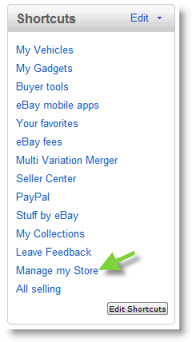
- The Summary window will display. Under Shortcuts, click the Manage my Store link on the left-hand side of the window. (You may need to scroll to view this option.)
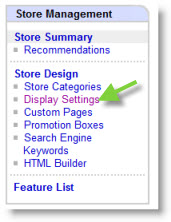
- Under Store Management, click Display Settings.
- Under Basic Information, click Change.

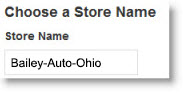
- Type the name for your store--this will also be the store URL. Use dashes (-) to separate different words. Note: To improve search results, it is recommended that you change this Store Name every few months.
- Add a store logo. You have three options for adding a logo (check the option you wish to use):
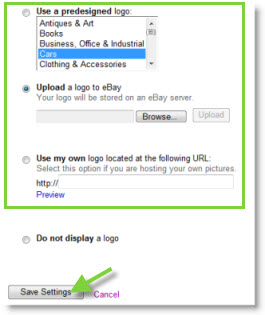
- Use a predesigned logo created by eBay. Check the desired logo from the list.
- Upload a logo to eBay. Click Browse to locate the file on your computer. Logos must be 310 by 90 pixels.
- Use my own logo located at the following URL. Type the URL of an existing logo that you are hosting.
- Click Save Settings.
- Choose a store theme. Your eBay store defaults to an predesigned template that can be changed if needed:
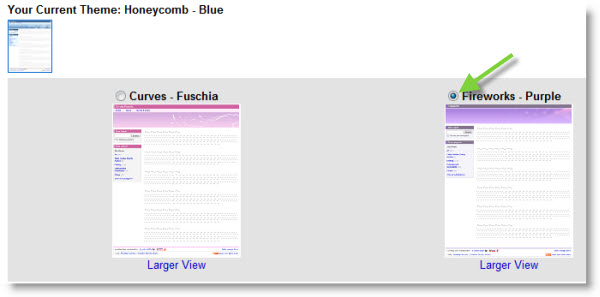
- Under Theme and Display, click Change to another theme.
- Check the option next to the desired theme.
- Click Save Settings.
- Click Search Engine Keywords to add keywords. Customize your keywords to increase your chances of potential buyers finding your store pages when using search engines such as MSN, Google, Yahoo, and so on. eBay uses these keywords to create page Titles and Meta Tags that help search engines better understand and present your eBay store pages. Note: These keywords can be refined at any time.
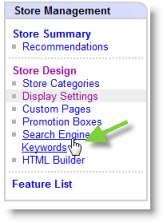
- Click Edit your keywords for Store Front Page.

- Type your keywords in the fields provided. To maximize your search results, OEC mentions using the following guidelines when adding keywords:
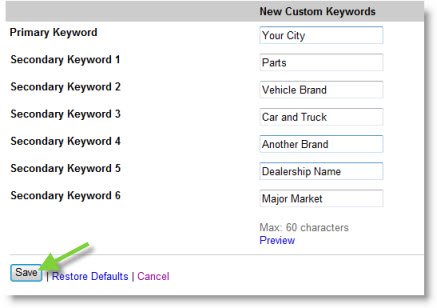
- Primary Keyword: Your city.
- Secondary Keyword 1: Parts
- Secondary Keyword 2: The brand of vehicle you provide parts for.
- Secondary Keyword 3: The types of vehicle you provide parts for. (Car and Truck)
- Secondary Keyword 4: Additional brands you provide parts for.
- Secondary Keyword 5: The name of your dealership.
- Secondary Keyword 6: A nearby city or major market.
- Click Save.