KB Article #3020
MarketplaceDirect allows you to automatically send email notifications to specific users at your dealership--alerting them when new orders arrive. Once notifications are created, they can be edited or removed at any time.
Note: MarketplaceDirect will not send any email notifications until at least one notification has been created.
- To create a new notification...
- To update an existing notification...
- To delete an existing notification...
- From the MarketplaceDirect tab, click MarketplaceDirect Setup.
- From the I want to drop-down, select Configure Notifications. This will disable (gray out) the for drop-down.

- Click OK.
- Click Create New.
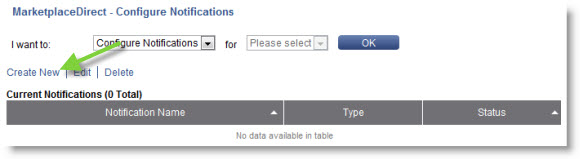
- Type a Notification Name in the field provided.
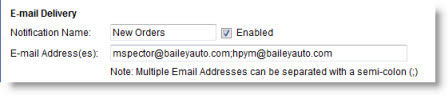
- Check the Enabled box.
- Type the E-mail Address(es) of the employees you want to receive the notifications in the provided field. Use a semi-comma (;) to separate multiple addresses.
- Under Delivery Hours, check the days of the week you want notifications sent.

- Use the drop-downs to select the time range to send notifications. Check the All day box to send the notifications at all hours.
- Click Save.
- Your new notification will now display.

- From the MarketplaceDirect tab, click MarketplaceDirect Setup.
- From the I want to drop-down, select Configure Notifications. This will disable (gray out) the for drop-down.

- Click OK.
- Click on the notification you wish to change.

- Click Edit.
- Make the necessary changes to the notification. Note: To disable the notification temporarily, uncheck the Enabled box.
- Click Save.
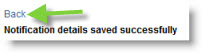
- Once the changes have been saved, click the Back button to return to the MarketplaceDirect Setup window.
- From the MarketplaceDirect tab, click MarketplaceDirect Setup.
- From the I want to drop-down, select Configure Notifications . This will disable (gray out) the for drop-down.
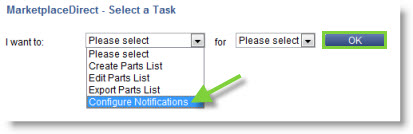
- Click OK.
- Click on the notification you wish to remove.

- Click Delete. The notification will be permanently removed.