KB Article #4885
Track your success and make strategic decisions with LinkIQ's report feature. LinkIQ allows you to schedule or download on demand a series of reports with the most current data about your OEC subscriptions. Reports will be available for solutions that you subscribe to, including DMS, CollisionLink, and RepairLink.
- Click here to view to list of available reports.
- Click here to add a scheduled report.
- Click here to edit saved reports.
- Click here to delete or deactivate a scheduled report.
- Click here to download a report on demand.
| Report | Description |
| DMS | |
| DMS Sales Decrease | Provides a list of customers that have more than $5,000 in sales in the last 90 days and have decreased their sales with your dealership by 25% or more when comparing the last month to the prior two-month average. |
| DMS Sales Increase | Provides a list of customers that have more than $5,000 in sales in the last 90 days and have increased their sales with your dealership by 25% or more when comparing the last month to the prior two-month average. |
| DMS Days No Sale | Provides a list of customers that have more than $5,000 in sales in the last 90 days but have not ordered from your dealership in 15 or more days. |
| DMS Return Rate Threshold | Provides a list of customers that have placed more than 10 orders in the last 90 days and have returned greater than 40% of their dollar value in parts in the same period. (This is useful in identifying customers with a high number of returns.) |
| CollisionLink | |
| CL Sales Decrease | Provides a list of customers that have more than $2,000 in sales in the last 90 days and have decreased their sales with your dealership by 25% or more when comparing the last month to the prior two-month average. |
| CL Sales Increase | Provides a list of customers that have more than $2,000 in sales in the last 90 days and have increased their sales with your dealership by 25% or more when comparing the last month to the prior two-month average. |
| CL Days No Sale | Provides a list of customers that have more than $3,000 in sales in the last 90 days but have not ordered from your dealership in 15 days or more. |
| CL New Attached Shops | Provides a list of shops that have attached (become an active Trading Partner) to your dealership in the last 30 days. Additionally, the report also provides the shop's sales volume for the last 30 days--allowing you to monitor new customers and their usage of CollisionLink. |
| RepairLink | |
| RL Sales Decrease | Provides a list of customers that have more than $2,000 in sales in the last 90 days and have decreased their sales with your dealership by 25% or more when comparing the last month to the prior two-month average. |
| RL Sales Increase | Provides a list of customers that have more than $2,000 in sales in the last 90 days and have increased their sales with your dealership by 25% or more when comparing the last month to the prior two-month average. |
| RL Days No Sale | Provides a list of customers that have more than $3,000 in sales in the last 90 days but have not ordered from your dealership in 15 days or more. |
| RL New Attached Shops | Provides a list of shops that have attached (become an active Trading Partner) to your dealership in the last 30 days. Additionally, the report also provides the shop's sales volume for the last 30 days--allowing you to monitor new customers and their usage of RepairLink. |
- From the LinkIQ tab, click the Settings sub-tab.

- If needed, use the Select Manufacturer drop-down to select the OEM.

- Type your email address in the provided box and click Add. Repeat this step to send the report to additional email addresses.

- Check the box next to the reports you wish to receive.
-or-
Check Select All to receive copies of all reports.
- Choose the day to receive the reports from the Deliver weekly on drop-down.

- Click Add Scheduled Reports.
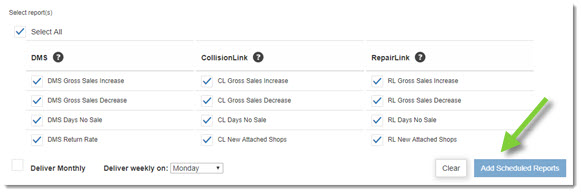
- Your list of scheduled reports will display at the bottom of the Alert Reports window. Once configured, you will receive an email every Monday with the most current data about your OEC subscriptions.

- In the LinkIQ tab, click Settings. A list of saved reports will display in the Scheduled Reports section.
- Click the Edit button associated with the report you want to modify.
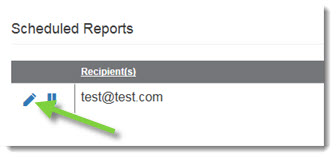
- Modify the following as needed:
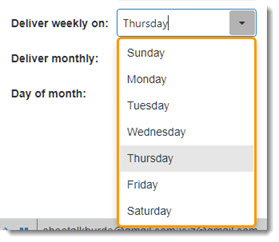
- To change the day the report is sent, click the Deliver weekly on drop-down and select a different day.
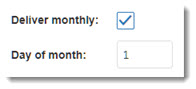
- If you want the report to be delivered once a month, check the the Deliver Monthly box and then type the Day of month the report should be sent.
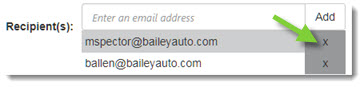
- To add an additional recipient, type the email address in the field provided and then click Add.

- To remove a recipient, click the X next to their email address.
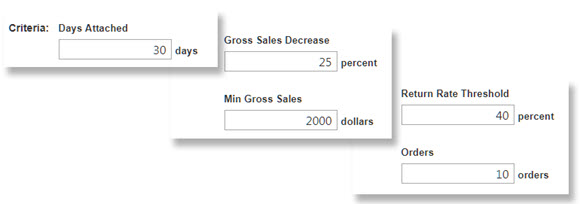
- Use the Criteria options to narrow the information that displays on the report. (Criteria varies by report.)
- To change the day the report is sent, click the Deliver weekly on drop-down and select a different day.
- Click Save to finalize your changes. These changes will take effect with the next report you receive.
- In the LinkIQ tab, click Settings.

- Locate the report you want to delete in the list of Scheduled Reports at the bottom of the window.
To deactivate a report temporarily:
- Click the Deactivate button.

- A message will display notifying you the report has been deactivated. The report will no longer be sent each Monday.

- Click the Activate button when your are ready to start sending the report again.

To permanently remove a report subscription:
- Click the trash can icon.

- Click Yes to confirm the report deletion.

- The deleted report will be removed and will no longer be included in your Monday email.
- From the LinkIQ tab, click the Settings sub-tab.

- If needed, use the Select Manufacturer drop-down to select the OEM.

- Click the On Demand tab.

- Select the report you want to download. (You can only download one report at a time.)

- If needed, adjust the criteria of the report to meet the needs of your dealership. (Adjustable values vary by report.)

- Click Download Report.

- Your report will download as a CSV-formatted file.