KB Article #4498
With DMS Connect, orders you view will display quantity on hand (QOH) and part pricing information imported from your DMS.
- Handling parts that are not in your DMS in CollisionLink...
- Handling parts that are not in your DMS in RepairLink...
- Including parts that are not in your DMS inventory...
To handle parts that are not in your DMS in CollisionLink:
- If a part in your CollisionLink order is not included in your DMS inventory information:
- CollisionLink will display an alert indicating part(s) did not have a valid sell price in your DMS. Click the link to display the invalid part numbers.

- CollisionLink will display an asterisk and an N/A in the QOH box.
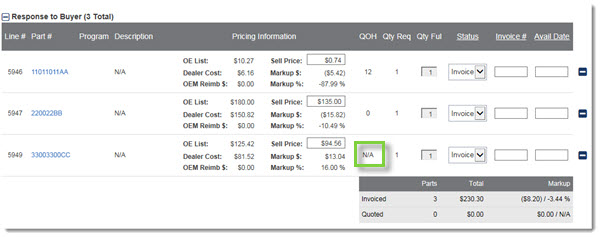
- The part's sell price will be calculated using OEC pricing rules instead (CollisionLink only).
- CollisionLink will display an alert indicating part(s) did not have a valid sell price in your DMS. Click the link to display the invalid part numbers.
- If you attempt to created a DMS quote, parts that are not in your DMS inventory will be flagged with an asterisk (*) on the Create a DMS Quote window. As indicated in the related note (shown above), parts that are not valid in your DMS inventory will not be included in the DMS quote.

- If you send the quote to DMS, the confirmation will notify you the part was not included in the quote sent to your DMS.

To handle parts that are not in your DMS in RepairLink:
If a part in your RepairLink order is not included in your DMS inventory information, RepairLink will display the RepairLink price as determined by your Default Pricing settings. The prices will be highlighted to alert you to the price difference. To add the part to your DMS Inventory, follow the workflow below.
To include parts that are not in your DMS inventory:
- If you are in the process of creating a DMS quote:
- Click Cancel to exit the quote.

- Click Yes, Cancel on the confirmation window to return to the order details window.

- Click Cancel to exit the quote.
- If you sent the quote to your DMS, click Back to Transaction to return to the order details window.

- Access your DMS to add the part to your inventory. Note: If needed, contact your DMS provider for assistance.
- Once the part has been added to your DMS, return to the CollisionLink or RepairLink order details window and click Refresh QOH. The part's quantity on hand will then be updated with information from your DMS.

- When ready to proceed, click Create a DMS Quote to start the process over.

- Verify that after adding the part to your DMS, the OE Part# does not display an asterisk (*) and then click Send to DMS to proceed with creating a quote in your DMS.
