KB Article #2854
If your dealer management system (DMS) can produce a file in OEC’s standard inventory file format for automotive dealers, OEC can receive parts inventory information from your DMS for use in our solutions. A regular inventory upload ensures potential buyers have access to your current information--helping you sell more parts to a larger audience and move idle inventory off your shelves faster. Please use the information below to prepare your inventory for OEC.
Important: Please keep in mind that the instructions below are designed to act as a guide. Variations such as system software updates, site-specific system customization, etc. may not be reflected in these instructions. For specific information on file generation, please contact your DMS representative for assistance.
Preparing your Inventory File:
Below are the file-specification details that must be followed to successfully upload your inventory. The minimum fields OEC must have on each line in order to publish inventory data are:
- Publishing Code
- Part Number
- Quantity on Hand
All other fields (Source, Quantity on Order, Entry Date, and Last Order Date) can be left blank, but you must still include all column headers.
Click here for a template to start adding your parts inventory information. Note: You must save this file with the file name provided to you in the email from OEC.
Rules:
- Data fields must be exported as comma separated (not tab separated) or the file will not load into OEC systems.
- The inventory file name must end with a TXT file extension (*.txt) to be accepted by the OEC FTP site.
- A line feed (LF) character should be used to separate the part lines. Carriage returns (CR) cannot be used.
- Inventories from multiple dealer codes / publishing codes can be included in the same file. If you choose to send one bulk inventory file for all your locations, use the FTP credentials of your main location to upload the file to the FTP site.
- The Publishing Code will be supplied by OEC. This is a unique number for each dealer.
- Quantity on Hand of 0 should not be sent unless Quantity on Order is greater than 0. If QOH and QOO are both 0, do not send the record.
- Duplicate parts can be sent. OEC will merge the part number lines and add the QOH together.
|
Publishing |
Part Number |
Source |
Quantity on Hand Note: Maximum 9999; no commas included. |
Quantity on Order |
Entry Date |
Last Sale Date |
Last Order Date |
Exception Code |
| 4112345 | 00719 | 300 | 2 | 0 | 04/01/2014 | 02/11/2014 | 12/30/2013 | |
| 4112345 | 01080431 | 301 | 4 | 4 | 04/04/2014 | 03/14/2014 | 01/11/2014 |
Or with the minimum requirements:
|
Publishing |
Part Number |
Source |
Quantity on Hand Note: Maximum 9999; no commas included. |
Quantity on Order |
Entry Date |
Last Sale Date |
Last Order Date |
Exception Code |
| 4112345 | 00719 | 2 | ||||||
| 4112345 | 01080431 | 4 |
Example Data (Two Part Lines):
4112345,00719,300,2,0,04/01/2014,02/11/2014,12/30/2013,
4112345,01080431,301,4,0,04/04/2014,03/14/2014,01/11/2014,
Example Data (Two Part Lines with the Minimum Requirements):
4112345,00719,,2,,,,,
4112345,01080431,,4,,,,,
Submitting Your Inventory File to OEC:
After preparing your file in the correct format, the inventory file must be exported and then uploaded to the OEC.
Notes:
- Files that are larger than 95 megabytes (MB) will be rejected by the system.
- To publish the file successfully, the contents must be in a comma-delimited format. However, the extension on the filename may need to changed from *.CSV to *.TXT when exported from your DMS. For example, filename "D111111.CSV" must be changed to "D111111.TXT".
To send the file via FTP:
- Save your file to a convenient location on your computer and rename it using the Inventory File Name provided to you by OEC.
- Open Windows Explorer. Type ftp://ftp.oeconnection.com in the address line and press the ENTER key. Note: Be sure to enter this in your computer's File Explorer window, not an Internet browser window.

- The Log On As window will display. Type or copy and paste the User name and Password provided by OEC into the fields provided.
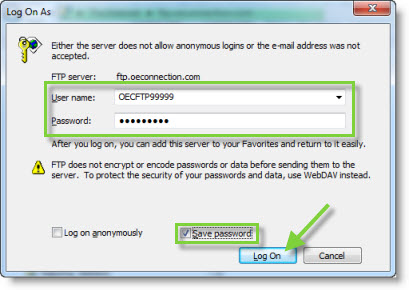
- Check the Save Password box so Windows Explorer will remember the User name and Password you log in with.
- Click Log On. If you have logged into the FTP site successfully you should see a blank area display on the right-hand pane of the Windows Explorer window.
- Locate the saved inventory file and use one of the methods below to upload your file:
- Option 1: Copy and paste the file into the area shown.
- Option 2: Drag and drop the file into the area shown.
- When your file is uploaded, it will display in the area shown, however, it may disappear after a moment. This is normal and does not mean there is an issue with the file. Note: You will not be able to delete or change the file after it is uploaded.
- Click the X in the upper right-hand corner to close Windows Explorer and disconnect from the OEC FTP site. Your inventory information should be available within the hour.

To ensure dealers have access to your latest stock, be sure to send this file every day!
- OEC standard FormatTemplate.csv130 Bytes