KB Article #3863
With DMS Connect, dealers can create a quote in their Dealer Management System (DMS) directly from a D2DLink sales order. In order to import part availability information into a D2DLink order and create a quote in your DMS, DMS Connect must be configured with the following information:
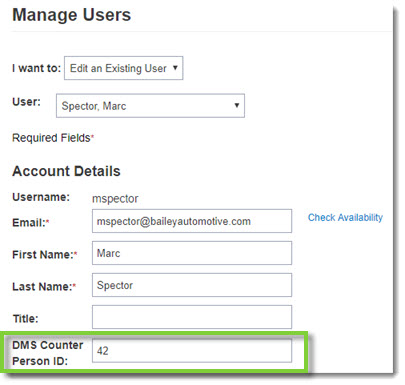
- DMS Counter Person ID: A sales person's ID in their DMS that identifies who created the quote.
- DMS Customer Number: The account id of the buyer in your DMS. (The six-digit customer number is required for Reynolds and Reynolds POWER users.)
-or-
Default DMS Customer Number: A "catch-all" account id for buyers that do not have a DMS Customer Number.
The following tasks must be performed by a user that has administrator-level OEC login credentials.
Step 1 - Setting Up the Default DMS Customer Number
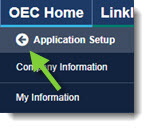
- From the D2DLink tab, click Application Setup.
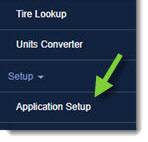
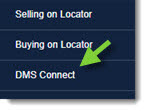
- Click DMS Connect.
- From the DMS Connect window:
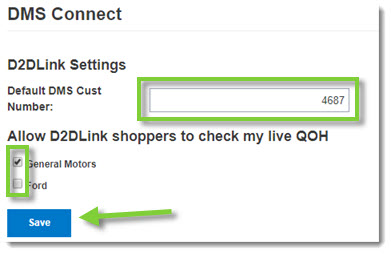
- Type the Default DMS Customer Number in the field provided.
- If you wish to allow other dealers to check a live feed of your quantity on hand, check the box next to the specific OEM.
- Click Save when complete.
Step 2 - Setting Up the DMS Counter Person ID
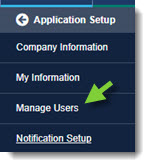
- Click Manage Users from the Application Setup menu options.
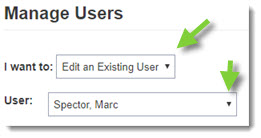
- Click the I want to drop-down, select Edit an Existing User, and then click the User drop-down to select a sales person.
- Type their DMS employee identifier into the DMS Counter Person ID field.
- Click Save to store your changes.
- When complete, click the Back button at the top of the left-hand navigation menu to close.