KB Article #3911
Orders that you cannot fill can be canceled. Note: This does not refund the transaction. For customers that paid using PayPal, you will need to log into your PayPal account to issue a refund. (Click here for more information.)
Note: To return to the legacy view of orders, click Go to Recent Orders - Legacy. (Click here for legacy instructions.)
To cancel an order:
- From the ConsumerLink Recent Orders window, click the additional order button.

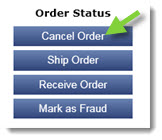
- Click Cancel Order.
- Select the reason for the cancellation.

- If desired, type a Note in the box provided.
- Click Cancel Order. An email will be sent to your customer indicating the order has been cancelled. Note: The email sent does not contain details as to why an order has been cancelled. It is recommended that you call or email your customer to explain the reason for the cancellation as well as when they should expect a refund.
To cancel an order: (Legacy View)
- From the ConsumerLink Pro Order History window, click Details.

- Click Cancel Order.

- Select the reason for the cancellation.

- If desired, type a Note in the box provided.
- Click Cancel Order. An email will be sent to your customer indicating the order has been cancelled. Note: The email sent does not contain details as to why an order has been cancelled. It is recommended that you call or email your customer to explain the reason for the cancellation as well as when they should expect a refund.