KB Article #3912
Use the Email feature to ask your customer questions about the order. To return to the legacy view of orders, click Go to Recent Orders - Legacy. (Click here for legacy instructions.)
To email a customer from the Recent Orders Window:
- In the Recent Orders window, type your message into the box.
- Click Send.

Note: Click the Email History button to open the legacy email window, which displays the full email history and offers more email features.
To email a customer from the Legacy Window:
- From the ConsumerLink Pro Order History window, click Details.

- Click Email Correspondence.

- Type the email in the provided box.
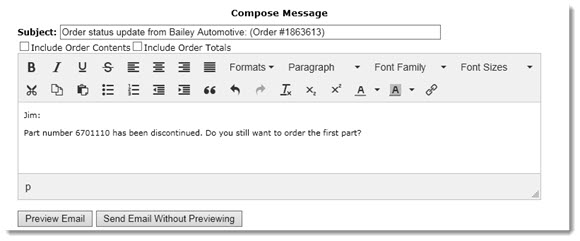
- Check the Include Order Contents box to include the parts list on the email.
- Check the Include Order Totals box to include the order totals on the email.
- Click Preview Email to view the final email before you send to a customer.
-or-
Click Send Email Without Previewing to send the email to the dealer.