KB Article #3927
Once you are set up as a ConsumerLink Pro dealer, you will have a fully functional e-commerce website for your parts department. (This can be a standalone site or a subdomain of your dealership website.) While the overall appearance of a ConsumerLink Pro website may vary based on the OEM template and other dealer-specific requirements, the parts-ordering process remains the same.
- To search for parts on a ConsumerLink Pro website...
- To confirm the fitment of the part...
- To order parts on a ConsumerLink Pro website...
To search for parts on a ConsumerLink Pro website:
- From the ConsumerLink Pro website, click the Enter VIN or Search by VIN button (this will vary based on OEM).
- Type your 17-digit VIN in the pop-up window.
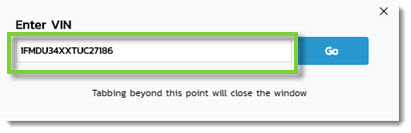
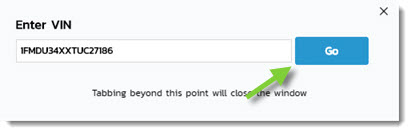
- Click Go.
- Select the Engine/Transmission and Trim level combination (if necessary).
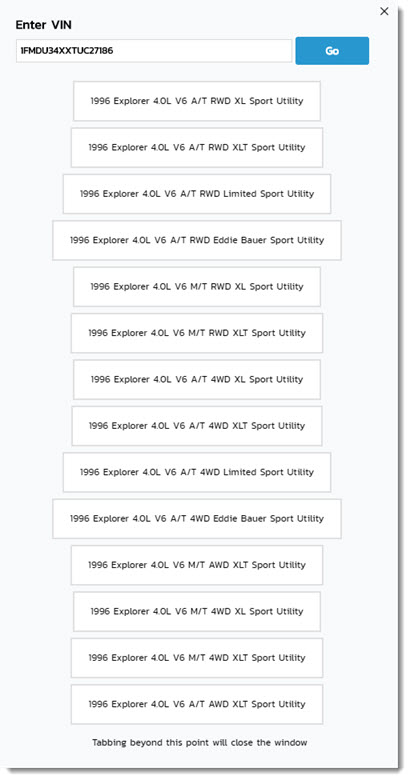
- The window will automatically refresh. Use the displayed categories to navigate to the part you need.
- Click the product name or part number of the part you need to check the fit.
- Select a vehicle by navigating through the Make (optional), Model, Driveline, and Trim Level (optional) buttons.
- Use the displayed categories to navigate to the part you need.
- Click the product name or part number of the part you need to check the fit.
Searching by Keyword or Part Number:
- Type the part number or a part's keyword in the search field.
- Press ENTER on your keyboard or click the search button (
 ) to begin the search.
 - Narrow down your search results by selecting the appropriate Make (optional), Model, and Model Year for the vehicle from the list of choices.
- Select the product by clicking on its Product Name or clicking the View Product button to check the fit.
To confirm fitment of the part:
If you did not select vehicle information during the previous steps:
- Select the Make (optional), Model, Driveline, and Trimline (optional).
- A fitment notification will appear.

Note: If the part doesn't fit, you will receive a "could not confirm fitment" notification with options to search for appropriate parts.
-or-
If you selected vehicle information during the previous steps:
- A fitment notification will automatically appear.
To order parts using ConsumerLink:
- Once you've identified the part that you wish to purchase, click the Add to Cart button.

- The Your Cart drop-down window will display.
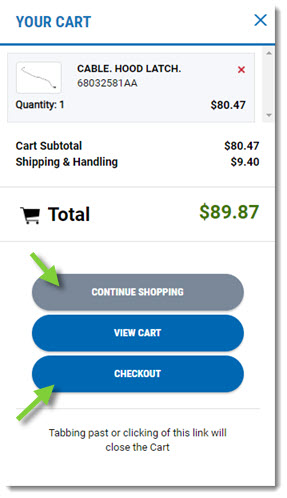
- If you would like to add additional parts to your order, click Continue Shopping.
- If the order is complete, click Checkout.
- Fill in the Contact and Billing Address sections.

- If the dealer allows it and you wish to pick the part up at the dealership, check the Local Pickup box.

- If shipping to an address other than your Billing Address, uncheck the My Shipping Address is the same as my Billing Address box and fill in the address fields.

- To ensure the ordered parts fit your vehicle, type the VIN in the provided field.

- If you have any special Instructions for the dealer, type those in the provided box.
- If you have a Coupon from the dealership, type it in the provided box.

- Review the Policies information and check the box to accept.

- Click Continue To Payment.
- Select your payment option:

- If using PayPal, you will be sent to PayPal's website to complete the payment process. Once the PayPal process has been completed, you will be returned to the dealer's website.
- If paying by credit or debit card, complete the required information.
- Upon payment completion, the order completion window will display. If desired, you can create an account for the dealer's parts site to check order status and speed up the time it takes to order parts in the future.
