KB Article #1533
ConsumerLink provides dealers with several options for collecting payment from their customers. Payment options available:
- Credit cards (Discover, Visa, MasterCard, American Express) via PayPal
- PayPal
- Offline payment
Before completing the Payment set up in ConsumerLink, you must first set up your sales tax rates in PayPal. Note: Only PayPal Standard users can configure ConsumerLink to automatically calculate the correct sales tax on your orders.
ConsumerLink Setup options can only be accessed by the ConsumerLink Administrator.
To add your payment information:
- From the ConsumerLink tab, click ConsumerLink Setup.
- Click the I want to: drop-down and select Setup Payment Options.
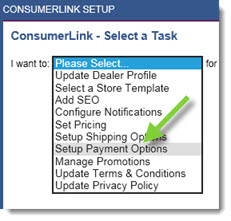
- Select your OEM from the OEM drop-down.
- Click OK to display the payment option configuration fields.
- To accept offline orders, check the Accept Offline Order box.
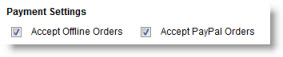
Note: If this option is selected, your customers will have the option to select Pay Dealer Direct as a Payment Method. Payment will not be processed within ConsumerLink.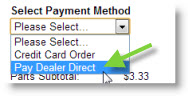
- To accept online orders, check the Accept PayPal Orders box. If this option is not checked, you do not have to configure the PayPal Settings.
- Select PayPal Standard from the PayPal Settings drop-down--even if using PayPal Pro.

- Type the Email associated with the PayPal account in the provided field.

- Click Save.