KB Article #1535
ConsumerLink provides you with generic templates as a starting point for both terms and conditions for your site as well as for your return policy. You can quickly tailor these to your business practices or paste your existing policies into the provided fields. Note: ConsumerLink Setup options can only be accessed by the ConsumerLink Administrator.
To update the terms and conditions and return policy text:
- From the ConsumerLink tab, click ConsumerLink Setup.
- Click the I want to: drop-down and select Update Terms & Conditions.
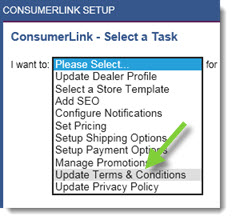
- Select your OEM from the OEM drop-down.
- Click OK to display the terms and conditions configuration fields.
- The Terms and Conditions field contains sample text for your reference. You will have to edit this text to make it specific to your website (be sure to delete the first paragraph). To return to the default terms and conditions text, click Reset to Default. If you have existing terms and conditions, simply paste these into the provided field.
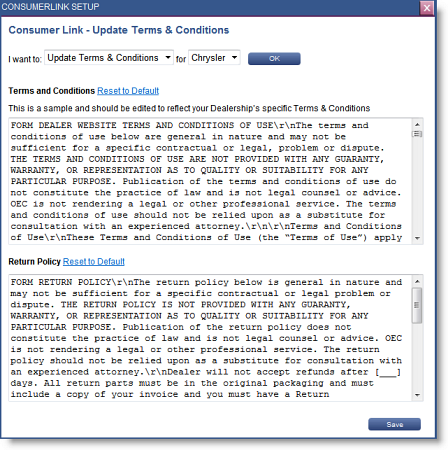
- The Return Policy field contains sample text for your reference. You will have to edit this text to make it specific to your website (be sure to delete the first paragraph). To return to the default return policy text, click Reset to Default. If you have an existing return policy, simply paste this into the provided field.
- Click Save.