KB Article #4865
DMS Connect allows users to pull customer-specific part pricing from a DMS into their sales orders. To take advantage of this feature, you must add the buyer's DMS Account ID into CollisionLink or RepairLink. Note: This can be done before your DMS Connect subscription is activated.
To add a buyer's DMS Customer Number:
- From the left-hand navigation, click Application Setup.
- From the Application Setup window, click Trading Partner Configuration.
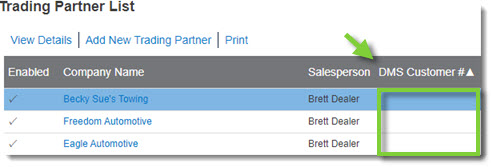
- Double-click on the first Trading Partner account listed to view its details. Note: To locate Trading Partners without a DMS number, click the DMS Customer # column heading. This will sort the Trading Partner list by the customer number, putting the unassigned DMS numbers at the top.
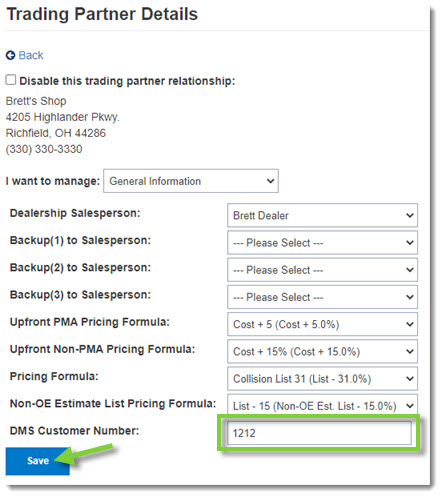
- Type the shop's DMS number in the DMS Customer Number field and then click Save.
- Click Back to return to your Trading Partner List.
- Repeat this process for each Trading Partner account on your list.