KB Article #5673
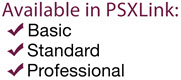
PSXLink allows you to create and schedule custom data reports to drill into specific details about your dealership's performance. These reports can be sorted or filtered to view specific details and downloaded to share within your dealership. By scheduling them, you can receive the reports on a regular basis: daily, weekly, or monthly. (Click here for more on creating on demand custom reports.)
- Click here to view a list of available custom reports.
- Click here to add a scheduled custom report.
- Click here to edit scheduled custom reports.
- Click here to delete or deactivate a scheduled custom report.
Available Focus Reports
| Report | Description |
| CollisionLink | |
| Customers | The total sales quantities, sales dollars, orders, reimbursements, and conversions by customer. Click the |
| Parts | The total sales quantities, sales dollars, orders, reimbursements, and conversions by part number. Click the |
| Salesperson | The total sales quantities, sales dollars, orders, reimbursements, and conversions by salesperson. Click the |
| RepairLink | |
| Customers | The total sales quantities, sales dollars, orders, reimbursements, and conversions by customer. Click the |
| Parts | The total sales quantities, sales dollars, orders, reimbursements, and conversions by part number. Click the |
| D2DLink | |
| My Locates | The number of locates, the number of locate searches performed, and the total e-commerce requests by part number. |
| Idle Parts | A summary of idle part inventory by age (6 months or older, 9 months or older, 12 months or older, 15 months or older, and 24 months or older). |
| D2D Express | |
| Referral Activity | Summarizes (by day) the number of D2D Express referrals received and what was done with them (Misses, Committed, Shipped, Canceled, or Declined). Click the |
| MarketplaceDirect | |
| Parts | Summarizes the total sales quantity, sales dollars, dealer cost, and margin by part. Click the |
Creating Scheduled Focus Reports
To schedule a custom PSXLink report:
- Choose Focus Report from the Segments drop-down menu.

- Select a Solution from the drop-down. (Only OEC solutions that you subscribe to will be available from this list.)
- Select the report you want to run from the Focus drop-down (see the table above for descriptions). Note: The Solution you selected will determine the available reports.

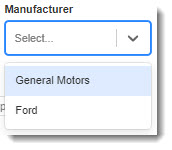
- If your dealership services multiple manufacturers, use the Manufacturer drop-down to select the desired option.
- Choose from one of the Date Range options in the drop-down menu. Important: You can generate a report for a Custom date range but not schedule it.

- When ready, click Schedule Report.

- Type your report name in the provided field.

- Type your email address in the provided box and click Add.

- Repeat this step to send the report to additional email addresses.
- Your scheduled report defaults to deliver weekly on Mondays. Use the drop-down to change the day of the week that your report is sent.

- Note: The report defaults to a weekly delivery regardless of what data range is selected. For example, if you chose a 30-day report, you will receive this report each week. If you want to receive reports on a monthly basis, check the Deliver monthly box and choose what Day of Month the report should be sent.

- Note: The report defaults to a weekly delivery regardless of what data range is selected. For example, if you chose a 30-day report, you will receive this report each week. If you want to receive reports on a monthly basis, check the Deliver monthly box and choose what Day of Month the report should be sent.
- When ready, click Schedule Report.
- To view your list of scheduled reports:
- Choose Saved Focus Reports from the Segments drop-down menu.

- Click the Scheduled Focus Reports tab and find your new report in the list.

- Choose Saved Focus Reports from the Segments drop-down menu.
Editing Scheduled Focus Reports
To edit scheduled custom reports:
- Choose Saved Focus Reports from the Segments drop-down menu.

- Click the Scheduled Focus Reports tab and click the Edit icon associated with the report you want to modify.

- Modify the following as needed:
- Change the Date Range by choosing from the drop-down menu.

- Update the delivery timing by choosing the weekday from the drop-down or checking the Deliver monthly on day option and choosing the day of the month.

- Add and remove email addresses from the Recipient(s) section as desired.

- Change the Date Range by choosing from the drop-down menu.
- Click Save Report to finalize your changes. These changes will take effect with the next report you receive.
Deleting Scheduled Focus Reports
To delete or deactivate a scheduled custom PSXLink report:
- Choose Saved Focus Reports from the Segments drop-down menu.

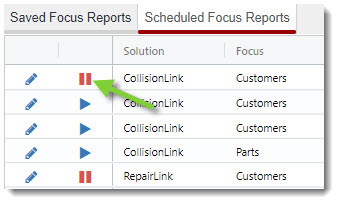
- Click the Scheduled Focus Reports tab and locate the report you want to delete in the table.
To deactivate a report temporarily:
- Click the Deactivate button.

- Click the Activate button when you are ready to start sending the report again.
To permanently remove a scheduled custom report:
- Click the trash can icon to the right of the desired report.

- Click Delete Report to confirm the report deletion.

- The report will be removed and will no longer be sent.