KB Article #6618
If the part is found within the EPCLink catalog with that part number fitting the desired vehicle, EPCLink will launch in a new window and show the section illustration the part belongs to, highlighting the part callout.
To view parts in the section view:
- The selected part will be listed on the right-hand side of the new window. (Click here for more information on the details displayed.)
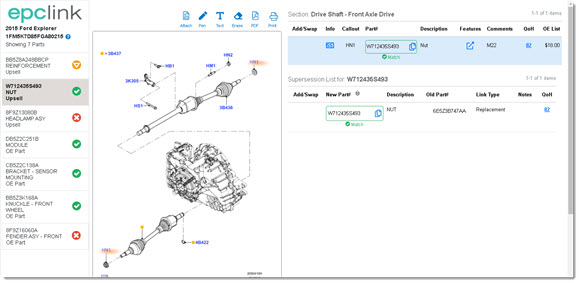
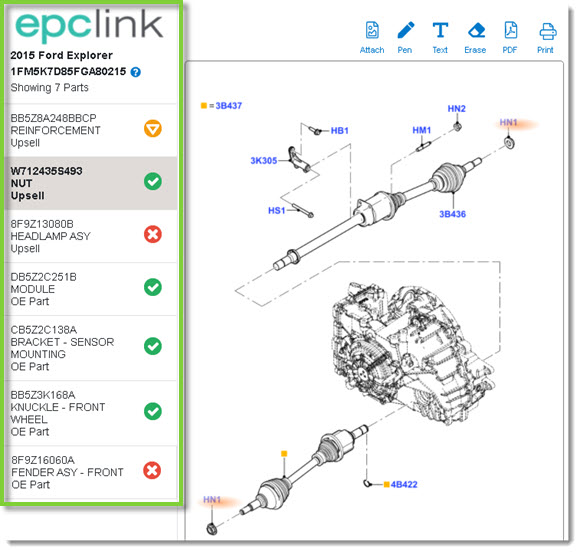
- The left-hand column will list all parts on the order.
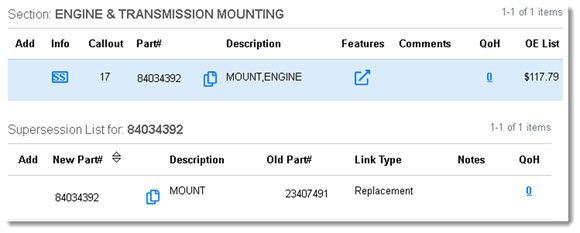
- If the part has been superseded, the supersession list will appear below the table.
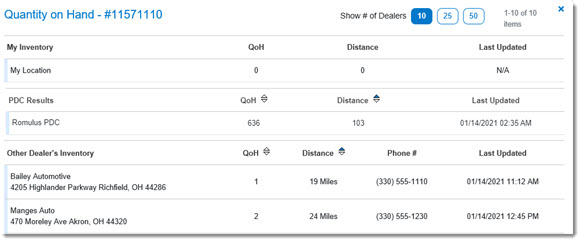
- Determine if you have the part in stock. If not, use the QoH feature to locate the part at your PDC or other area dealers. (Click here for more information on inventory within EPCLink.)
- Click on other callouts in the illustration to check for additional parts. Note: If you hover your mouse over a callout, the part description will display.

- You can markup the illustration using the options in the top right and then send to your shop.
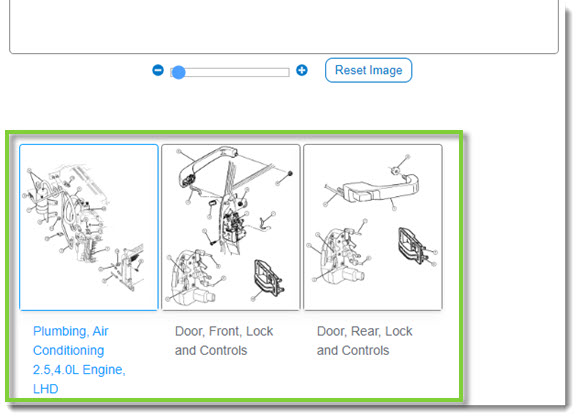
- If the part appears in other sections, click the section thumbnail below the illustration to navigate to the other sections.
- Use the left side panel to view and switch between the parts currently in the order. Each item will show the part number, a brief description, and if the part appeared in the Upsell or OE Part section of the order.
- To return to the order, click the X in the upper right-hand corner of the window.